Running Your First Container — Docker CLI
Overview
Use the core Docker CLI to run, inspect, exec into, log, stop, and remove containers confidently.
Daily ops is CLI fluency: run, ps, logs, exec, stop, rm. Lifecycle awareness prevents orphan containers and surprise disk use.
This is a core tutorial in Module 3 · Docker CLI of the REBASH Academy Docker for Cloud & DevOps Engineers series — written for Cloud, DevOps, Platform, and SRE engineers.
Prerequisites
Learning Objectives
By the end of this tutorial, you will be able to:
-
docker runwith ports and names - List running/stopped containers
- Follow logs and
execa shell - Inspect JSON config
- Clean up with
stop/rm
Architecture
This topic’s control points and relationships are shown below.
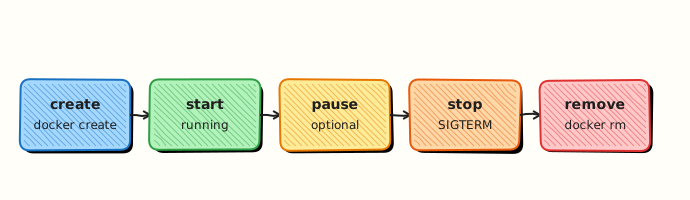
Theory
What
docker run creates and starts a container from an image. Day-one operations also include listing (ps), stopping, reading logs, executing a shell in a running container (exec), and inspecting low-level metadata. These commands are the foundation of every later Compose and Kubernetes skill.
Why
If you cannot start a container, read its logs, and confirm the process exit code, you cannot debug CI or production. Learning graceful stop versus kill, and when to use --rm, prevents leftover containers filling disks during labs.
How it works
docker run [options] image [cmd] pulls the image if needed, creates a container, and starts it. Common flags publish ports (-p), set environment variables (-e), mount volumes, and name the container. Foreground vs detached (-d) changes whether your terminal attaches to the process. docker logs reads the configured logging driver (often json-file capturing stdout/stderr). docker exec starts an additional process in the same namespaces — useful for debugging, not as the main entrypoint. docker inspect prints JSON; Go-template --format strings use double braces and must be escaped in MkDocs, for example {{.State.Status}}.
| Command | Use |
|---|---|
docker run | Create + start (often --rm) |
docker ps -a | List containers |
docker stop / kill | Graceful vs SIGKILL |
docker logs -f | Stdout/stderr |
docker exec -it | Shell in running container |
docker inspect | Low-level details |
Key concepts
- PID 1 — the container’s main process; its exit stops the container
- Published ports — host:container mapping is not the same as
EXPOSE - Ephemeral vs named —
--rmfor experiments; names for labs you revisit - Exit codes — distinguish pull failures from app crashes
Common pitfalls
- Forgetting
-dand thinking the container “died” when you closed the terminal wrongly - Using
killbefore allowing gracefulstop execinto a crashed container (it must be running)- Publishing
0.0.0.0ports on shared runners without care
Hands-on Lab
Objective
Walk a full container lifecycle with the Docker CLI: run detached, inspect, logs, exec, graceful stop, and remove — using uniquely named rebash-cli-* resources.
Prerequisites
- Docker Engine or Docker Desktop
curlavailable on the host
Lab environment
Workspace: ~/rebash-docker/module-03
Host port 18083 is reserved for this lab to avoid clashes with other modules.
Real-world scenario
You deploy a sidecar nginx container on a jump server to serve a static health page during a migration. You need to prove the container is up, read its logs, run a command inside it, stop it cleanly, and remove it — the everyday CLI workflow before Compose or Kubernetes.
Step-by-step tasks
Task 1 – Run detached with a unique name and published port
cd ~/rebash-docker/module-03
docker run -d --name rebash-cli-web -p 18083:80 nginx:1.27-alpine
docker ps --filter name=rebash-cli-web --format 'table {{.Names}}\t{{.Status}}\t{{.Ports}}' | tee cli-ps.txt
grep -q 'rebash-cli-web' cli-ps.txt
curl -sI http://127.0.0.1:18083 | head -n 5 | tee cli-headers.txt
grep -qi 'HTTP/' cli-headers.txt
Expected output
cli-ps.txt shows rebash-cli-web Up with 18083->80; headers include HTTP/1.1 200 or HTTP/2 200.
Task 2 – Logs and exec into the running container
cd ~/rebash-docker/module-03
docker logs rebash-cli-web 2>&1 | tail -n 15 | tee cli-logs.txt
docker exec rebash-cli-web nginx -v 2>&1 | tee cli-exec-nginx-v.txt
grep -qi 'nginx' cli-exec-nginx-v.txt
Expected output
cli-logs.txt has nginx startup lines; cli-exec-nginx-v.txt prints an nginx version.
Task 3 – Stop, confirm exited, and remove
cd ~/rebash-docker/module-03
docker stop rebash-cli-web | tee cli-stop.txt
docker ps -a --filter name=rebash-cli-web --format '{{.Status}}' | tee cli-status-after-stop.txt
grep -qi 'exited' cli-status-after-stop.txt
docker rm rebash-cli-web | tee cli-rm.txt
! docker ps -a --filter name=rebash-cli-web --quiet | grep -q .
Expected output
Status shows Exited; container name no longer appears in docker ps -a.
Validation steps
-
rebash-cli-webreached running state with port18083published -
cli-logs.txtandcli-exec-nginx-v.txtprove logs and exec worked - Container was stopped and removed without orphan name conflicts
Common errors and fixes
| Error | Cause | Fix |
|---|---|---|
| port is already allocated | Previous lab on 18083 | docker rm -f the old container or pick another high port |
| Error response from daemon: No such container | Typo in name | Use docker ps -a to confirm exact name |
| exec failed: container is not running | Stopped too early | Run exec before docker stop |
Challenge exercise
Re-run the lifecycle with --rm so removal is automatic after stop:
cd ~/rebash-docker/module-03
docker run -d --rm --name rebash-cli-auto -p 18084:80 nginx:1.27-alpine
docker stop rebash-cli-auto
! docker ps -a --filter name=rebash-cli-auto --quiet | grep -q .
echo 'auto-removed ok' | tee cli-challenge.txt
Expected output
cli-challenge.txt exists; rebash-cli-auto is gone after stop.
Learning outcomes
- Used
docker run -d,-p, and--namefor a detached web container - Retrieved logs and ran a command with
docker exec - Performed graceful
docker stopanddocker rm(and optional--rm)
Cleanup
cd ~/rebash-docker/module-03
docker rm -f rebash-cli-web rebash-cli-auto 2>/dev/null || true
docker rmi nginx:1.27-alpine 2>/dev/null || true
Validation
- Lab commands run under
~/rebash-docker/module-03/ - Evidence files (
cli-ps.txt,cli-headers.txt,cli-logs.txt) document the lifecycle - You can explain each Theory section in your own words
- You can describe one production failure mode for this topic
Code Walkthrough
Production practice for Running Your First Container — Docker CLI always combines:
- Inspect before you change (status, plan, logs, dry-run)
- Prefer reversible, documented changes (Git, IaC, drop-ins, version pins)
- Capture evidence (command output, pipeline logs) for handovers
- Prefer current tools and APIs over legacy shortcuts
- Least privilege — escalate credentials only when required
Keep runbooks short enough to follow under pressure. Automate checks; keep humans for judgement.
Security Considerations
- Treat credentials and tokens for docker as privileged — never commit them
- Prefer short-lived auth (OIDC, roles, SSO) over long-lived keys
- Validate blast radius before apply/deploy/delete operations
- Restrict who can approve production changes
- Collect audit logs; limit who can read sensitive traces
Common Mistakes
Forgetting -d and thinking the container “died” when you closed the terminal wrongly
Validate assumptions against the Theory section and official docs before changing production.
Using kill before allowing graceful stop
Lab shortcuts (open security groups, admin roles, skip approvals) must not ship unchanged.
Changing production without a rollback path
Always know how to revert (previous artefact, prior release, state rollback, DNS failback).
Best Practices
- Encode Running Your First Container — Docker CLI changes as code and review them in pull requests
- Pin versions (images, modules, actions, provider plugins)
- Separate environments with clear promotion gates
- Alert on symptoms with runbooks attached
- Destroy lab resources; tag everything with owner and expiry where possible
Troubleshooting
| Symptom | Likely cause | Fix |
|---|---|---|
| Auth / permission denied | Wrong identity, policy, or scope | Check caller identity, roles, and least-privilege policies |
| Timeout / no route | Network, DNS, security group, or endpoint | Trace path, DNS, and allow-lists before retrying |
| Drift / unexpected plan | Manual change or wrong state/workspace | Reconcile desired vs actual; avoid click-ops on managed resources |
| Pipeline/job red | Flaky step, cache, or missing secret | Read failing step logs; bisect recent workflow/config changes |
| Cost spike | Idle load balancer, NAT, oversized compute | Inventory billable resources; stop/delete labs promptly |
Summary
Running Your First Container — Docker CLI is essential for Cloud and DevOps engineers working with docker. Practise the lab until the inspection and change path is muscle memory, then continue the track.
Interview Questions
- What do -d, --name, and -p do?
- Port publish fails — typical causes?
- How do you get a shell in a running container?
- Difference between stop and rm?
- Why prefer --rm for ephemeral experiments?
Sample answer — question 2
Confirm the container is running, the published port mapping, and that nothing else bound the host port.
Sample answer — question 4
Do not publish administrative ports to 0.0.0.0 on untrusted networks.