Docker Installation and Setup
Overview
Install a working Docker Engine (or Desktop), verify with docker version / hello-world, and know when rootless Docker and contexts matter.
Docker Engine on Linux is the production-like path. Docker Desktop bundles Engine + UI on macOS/Windows. Rootless reduces privilege; contexts point the CLI at remote engines.
This is a core tutorial in Module 2 · Installing Docker of the REBASH Academy Docker for Cloud & DevOps Engineers series — written for Cloud, DevOps, Platform, and SRE engineers.
Prerequisites
- Docker Architecture and Components
- Admin rights on your machine (or a cloud VM)
Learning Objectives
By the end of this tutorial, you will be able to:
- Install Engine or Desktop for your OS
- Confirm daemon is running
- Run
hello-world - List Docker contexts
- State rootless trade-offs
Architecture
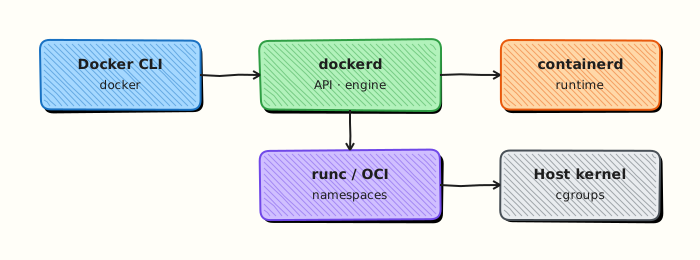
This topic’s control points and relationships are shown below.
Theory
What
You can run containers with Docker Engine on Linux servers, Docker Desktop on macOS/Windows, or rootless Engine variants that reduce host privilege. The CLI can target different engines via contexts. Post-install group membership on Linux (docker group) controls who may talk to the daemon socket.
Why
Dev/prod parity suffers when laptops use Desktop’s virtual machine networking while CI uses Engine on Linux. Security-sensitive environments prefer rootless or restricted access because membership of the docker group is effectively root via the socket. Choosing the right install path early avoids “it works locally” surprises.
How it works
On Linux servers and CI runners, install Engine from the vendor repository, start the systemd unit, and verify with docker version / docker info. On macOS/Windows, Desktop runs a Linux virtual machine that hosts the engine. Rootless mode runs the daemon as your user with networking trade-offs. Contexts switch the CLI between local Desktop, a remote TCP endpoint, or another node. After adding a user to the docker group, a full logout/login is required for group membership to apply.
| Option | When |
|---|---|
| Engine (Linux) | Servers, CI runners, closest to production |
| Desktop | Local macOS/Windows development |
| Rootless | Security-sensitive laptops (limits apply) |
| Context | Point CLI at remote/dev VM |
Key concepts
- Socket permissions — who can control the daemon
- Desktop VM — extra network/filesystem translation layer
- Credential helpers — registry login storage
- Version skew — keep CLI and Engine reasonably aligned
Common pitfalls
- Using
sudo dockerforever instead of fixing group membership (or vice versa, granting it too widely) - Exposing
dockerdon TCP0.0.0.0without mutual TLS - Assuming Desktop file mounts behave like Linux bind mounts in production
- Skipping
docker infoafter install and missing cgroup or storage-driver issues
Hands-on Lab
Objective
Create a post-install verification script, run it, and prove Docker Engine, group/context access, and a smoke container all succeed.
Prerequisites
- Docker Engine or Docker Desktop freshly installed (or already running)
- Shell access on Ubuntu 22.04/24.04 or macOS with Docker Desktop
Lab environment
Workspace: ~/rebash-docker/module-02
Local Docker daemon. The script stays in your lab folder for re-runs after upgrades.
Real-world scenario
After provisioning a CI runner or engineer laptop, platform teams require a repeatable install check before granting registry access. You ship a small verify-docker.sh that confirms daemon connectivity, documents group membership, and runs hello-world or Alpine as a smoke test.
Step-by-step tasks
Task 1 – Author the verification script
Create verify-docker.sh:
#!/usr/bin/env bash
set -euo pipefail

OUT="${1:-verify-docker.log}"
{
  echo "=== docker version ==="
  docker version
  echo "=== docker info (short) ==="
  docker info --format 'RootDir={{ "{{" }}.DockerRootDir{{ "}}" }} Context={{ "{{" }}.Name{{ "}}" }}'
  echo "=== group membership ==="
  id
  groups
  echo "=== context ==="
  docker context ls
  echo "=== smoke: hello-world ==="
  docker run --rm hello-world
} | tee "$OUT"
Make it executable and dry-run syntax:
Expected output
bash -n exits 0; script is executable.
Task 2 – Run verification and capture log
Execute the script and assert the daemon responded.
cd ~/rebash-docker/module-02
./verify-docker.sh verify-docker.log
grep -q 'Server:' verify-docker.log
grep -q 'Hello from Docker' verify-docker.log
Expected output
verify-docker.log contains Server version lines and the hello-world greeting.
Task 3 – Alpine smoke and context proof
Pin a small image for a second smoke test; record active context.
cd ~/rebash-docker/module-02
docker run --rm alpine:3.20 echo 'alpine smoke ok' | tee alpine-smoke.txt
docker context show | tee active-context.txt
grep -q 'alpine smoke ok' alpine-smoke.txt
test -s active-context.txt
Expected output
alpine-smoke.txt prints alpine smoke ok; active-context.txt names the current context (often default).
Validation steps
-
verify-docker.shruns without errors and writesverify-docker.log - Log shows hello-world output and Server section from
docker version -
alpine-smoke.txtandactive-context.txtconfirm smoke container and context
Common errors and fixes
| Error | Cause | Fix |
|---|---|---|
| permission denied on socket | User not in docker group | sudo usermod -aG docker "$USER" and re-login, or run script with documented sudo |
| Cannot connect to daemon | Service not started | Linux: sudo systemctl enable --now docker; Desktop: start the app |
| hello-world pull fails | Offline or proxy | Configure registry mirror or pull once with network access |
Challenge exercise
Extend the script to fail fast when docker info reports LiveRestoreEnabled as false on a production checklist — append a grep check to verify-docker.sh after the info block:
Re-run ./verify-docker.sh verify-docker-v2.log and keep both logs.
Expected output
liverestore.txt contains true or false; second log file exists.
Learning outcomes
- Packaged post-install checks into a reusable shell script
- Verified group/context access alongside daemon health
- Ran pinned smoke containers (
hello-world,alpine:3.20)
Cleanup
Validation
- Lab commands run under
~/rebash-docker/module-02/ -
verify-docker.logproves install smoke tests passed - You can explain each Theory section in your own words
- You can describe one production failure mode for this topic
Code Walkthrough
Production practice for Docker Installation and Setup always combines:
- Inspect before you change (status, plan, logs, dry-run)
- Prefer reversible, documented changes (Git, IaC, drop-ins, version pins)
- Capture evidence (command output, pipeline logs) for handovers
- Prefer current tools and APIs over legacy shortcuts
- Least privilege — escalate credentials only when required
Keep runbooks short enough to follow under pressure. Automate checks; keep humans for judgement.
Security Considerations
- Treat credentials and tokens for docker as privileged — never commit them
- Prefer short-lived auth (OIDC, roles, SSO) over long-lived keys
- Validate blast radius before apply/deploy/delete operations
- Restrict who can approve production changes
- Collect audit logs; limit who can read sensitive traces
Common Mistakes
Using sudo docker forever instead of fixing group membership (or vice versa, granting it
Validate assumptions against the Theory section and official docs before changing production.
Exposing dockerd on TCP 0.0.0.0 without mutual TLS
Lab shortcuts (open security groups, admin roles, skip approvals) must not ship unchanged.
Changing production without a rollback path
Always know how to revert (previous artefact, prior release, state rollback, DNS failback).
Best Practices
- Encode Docker Installation and Setup changes as code and review them in pull requests
- Pin versions (images, modules, actions, provider plugins)
- Separate environments with clear promotion gates
- Alert on symptoms with runbooks attached
- Destroy lab resources; tag everything with owner and expiry where possible
Troubleshooting
| Symptom | Likely cause | Fix |
|---|---|---|
| Auth / permission denied | Wrong identity, policy, or scope | Check caller identity, roles, and least-privilege policies |
| Timeout / no route | Network, DNS, security group, or endpoint | Trace path, DNS, and allow-lists before retrying |
| Drift / unexpected plan | Manual change or wrong state/workspace | Reconcile desired vs actual; avoid click-ops on managed resources |
| Pipeline/job red | Flaky step, cache, or missing secret | Read failing step logs; bisect recent workflow/config changes |
| Cost spike | Idle load balancer, NAT, oversized compute | Inventory billable resources; stop/delete labs promptly |
Summary
Docker Installation and Setup is essential for Cloud and DevOps engineers working with docker. Practise the lab until the inspection and change path is muscle memory, then continue the track.
Interview Questions
- What does membership in the docker group imply on Linux?
- Client works but daemon errors — where do you look?
- Rootless Docker — when would you choose it?
- How do you verify Engine versus Compose plugin install?
- What is a Docker context used for?
Sample answer — question 2
Run docker version/docker info and inspect daemon logs. Permission denied on the socket usually means group/context issues.
Sample answer — question 4
Treat docker.sock access as root-equivalent.