Troubleshooting Shell Scripts
Overview
When a script works on your laptop and fails in Continuous Integration (CI) or cron, guessing wastes time. You need a method: reproduce with the same interpreter and a minimal environment, read the error carefully, isolate the bad expansion or pipeline, fix it, and keep before/after evidence.
Common real failures are not mysterious. They are usually quoting bugs (spaces in paths), missing pipefail (pipelines look successful), wrong exit codes (CI stays green), short PATH under cron, Windows CRLF line endings, or permission bits. This tutorial gives you a broken script on purpose, then you repair quoting, pipefail, and exit handling — and prove the fix with captured output.
In Cloud and DevOps work, the same pattern shows up on build agents, jump servers, and container entrypoint scripts. Site Reliability Engineering (SRE) teams expect you to show the failing command, the root cause in one sentence, and a regression check so the bug does not return. That is also what interviewers want.
This is Tutorial 18 in Module 18: Troubleshooting of the REBASH Academy Shell Scripting for DevOps Engineers series. It is written for Linux administrators, DevOps engineers, SRE, and platform engineers. By the end, you will have a fixed script plus before/after evidence you can discuss in a ticket or interview. For the wider learning path after this course, see the Shell roadmap and course overview.
Prerequisites
- Production Shell Scripting
- Bash 4.2+ on a practice Linux host (Ubuntu 22.04/24.04 VM, WSL2, or similar)
- Comfort with
bash -x, exit codes, and basic redirection
Learning Objectives
By the end of this tutorial, you will be able to:
- Reproduce a script failure under a controlled environment and capture evidence
- Recognise quoting,
pipefail, and exit-code bugs from symptoms - Repair a broken script so pipelines and paths with spaces behave correctly
- Prove the fix with before/after exit codes and output files
- Apply a short checklist for cron/CI environment mismatches
Architecture
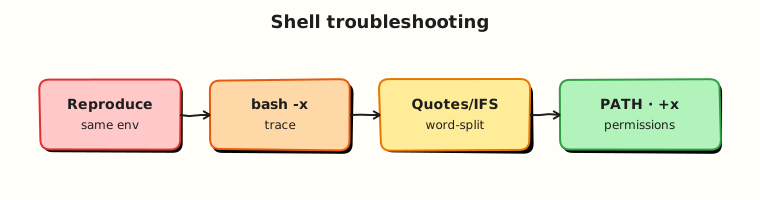
Troubleshooting is a loop: reproduce → isolate → fix → verify. Traces (bash -x), exit codes, and log files are the feedback signals.
Theory
What it is
Troubleshooting shell scripts means finding why Bash did not do what you expected, then proving a fix. You align the interpreter (bash vs sh), the environment (PATH, cwd, env vars), and the data (paths with spaces, empty inputs). You use tools such as bash -x, declare -p, type, file, and sed -n l (to spot CRLF). You map error messages to likely causes instead of editing random lines.
Why it matters
“Works on my machine” is the default state of unfinished automation. CI runners and cron users see a short PATH, no aliases, and often a different cwd. Without a method, people disable set -u or add || true until the symptom moves — and leave a landmine for the next on-call. A repeatable approach protects production and builds trust in your scripts.
How it works
- Reproduce — same script path, same args; prefer
env -i PATH=/usr/bin:/bin HOME="$HOME" bash ./script.sh. - Observe — full stderr,
echo $?, and optionallybash -xwith a clearPS4. - Hypothesise — quoting? pipefail? wrong shebang? CRLF? permissions?
- Isolate — shrink input; wrap one block with
set -x/set +x. - Fix — smallest correct change; keep strict mode.
- Verify — before/after evidence; add a regression assert when useful.
export PS4='+${BASH_SOURCE[0]}:${LINENO}: '
env -i PATH=/usr/bin:/bin HOME="$HOME" bash -x ./script.sh args
Classic symptom map:
| Symptom | Likely cause |
|---|---|
command not found in cron | Short PATH — use absolute paths |
too many arguments / odd splits | Missing quotes around "$var" |
Exit 0 after a failed filter | Missing set -o pipefail |
$'\r': command not found | Windows CRLF line endings |
| Permission denied | Missing +x or directory x bit |
Key concepts and comparisons
| Technique | Use for | Caution |
|---|---|---|
bash -x | See expansions and order | May leak secrets; use temporarily |
env -i ... | Cron-like minimal env | Must supply needed PATH/HOME |
declare -p var | Exact value/type of a variable | Do not print secrets in tickets |
file / sed -n l | CRLF and special chars | Fix with sed -i 's/\r$//' when needed |
| Negative test | Prove bad input still fails closed | Keep intentional failures |
Common pitfalls
- Fixing the symptom with
|| trueinstead of the root cause. - Debugging only interactively (full
PATH) while production is cron. - Forgetting that
grepexit1(no match) fails underset -e— handle it on purpose. - Editing the script on Windows and reintroducing CRLF.
- Changing many things at once so you cannot explain what fixed it.
Hands-on Lab
Objective
Start from a broken inventory script under ~/rebash-shell/lab18, capture its bad behaviour (before), fix quoting / pipefail / exit handling, and capture the good behaviour (after) with evidence files.
Prerequisites
- Bash 4.2+
- Standard tools:
grep,wc,tee,env - No root required
Lab environment
Workspace: ~/rebash-shell/lab18
mkdir -p ~/rebash-shell/lab18 && cd ~/rebash-shell/lab18
set -euo pipefail
bash --version | head -n1 | tee bash-version.txt
Expected output
bash-version.txt exists.
Real-world scenario
A junior engineer’s “service inventory” script is used in CI. It should list matching unit names from a text file and exit non-zero when the pipeline’s grep stage fails — but today CI stays green even when nothing matches, and paths with spaces break the script. You reproduce, fix, and attach before/after proof to the ticket.
Step-by-step tasks
Task 1 – Install the broken script and capture “before” evidence
The script below is intentionally wrong: weak quoting, no pipefail, and it forces exit 0 at the end.
Create sample data/services.txt:
Create inventory-broken.sh:
#!/usr/bin/env bash
# BROKEN on purpose — do not use in production
set -euo

PATTERN=${1:-}
FILE=$2

# Bug 1: unquoted expansions break on spaces in paths
# Bug 2: no pipefail — pipeline status ignores earlier failures
matches=$(grep $PATTERN $FILE | wc -l)

echo "matches=$matches"
# Bug 3: always exit success for "CI calm"
exit 0
Run:
cd ~/rebash-shell/lab18
set -euo pipefail

mkdir -p "sample data"
# Copy without spaces so the exit-code bug can be shown separately from quoting
cp "sample data/services.txt" ./services.txt

chmod +x inventory-broken.sh

# Before A: path with spaces — unquoted $FILE splits the path (expect non-zero / errors)
set +e
./inventory-broken.sh service "sample data/services.txt" >before-spaces-out.txt 2>before-spaces-err.txt
ec_spaces=$?
set -e
printf '%s\n' "${ec_spaces}" | tee before-spaces-exit.txt
# Keep stderr evidence (grep often reports a missing "sample" file fragment)
test -s before-spaces-err.txt || test "${ec_spaces}" -ne 0

# Before B: no spaces — grep finds nothing, wc still succeeds, forced exit 0 (CI stays green)
set +e
./inventory-broken.sh 'nomatch-xyz' ./services.txt >before-nomatch-out.txt 2>before-nomatch-err.txt
ec_nomatch=$?
set -e
printf '%s\n' "${ec_nomatch}" | tee before-nomatch-exit.txt

test "${ec_nomatch}" -eq 0
grep -F 'matches=0' before-nomatch-out.txt | tee before-nomatch-snip.txt
Expected output
spaces path fails or errors (before-spaces-err.txt / non-zero exit). No-match on ./services.txt still exits 0 with matches=0 — that is the CI bug.
Task 2 – Fix quoting, pipefail, and exit codes
Write inventory-fixed.sh with correct quoting, set -euo pipefail, and honest exits (0 when matches ≥ 1, 3 when no matches, 1 on usage).
Create inventory-fixed.sh:
#!/usr/bin/env bash
set -euo pipefail

readonly E_OK=0
readonly E_USAGE=1
readonly E_NOMATCH=3

usage() {
  cat >&2 <<'USAGE'
Usage: inventory-fixed.sh PATTERN FILE
  Exit 0 if at least one match, 3 if none, 1 on usage error.
USAGE
}

main() {
  if [[ $# -ne 2 ]]; then
    usage
    exit "${E_USAGE}"
  fi
  local pattern=$1
  local file=$2

  if [[ ! -f "${file}" ]]; then
    printf 'ERROR: file not found: %s\n' "${file}" >&2
    exit "${E_USAGE}"
  fi

  local matches
  # grep exit 1 = no match; handle explicitly under set -e
  if ! matches=$(grep -E -- "${pattern}" "${file}" | wc -l); then
    matches=0
  fi
  # Normalise whitespace from wc
  matches=${matches//[[:space:]]/}

  printf 'matches=%s\n' "${matches}"
  if [[ "${matches}" -eq 0 ]]; then
    printf 'RESULT=status=nomatch;matches=0\n'
    exit "${E_NOMATCH}"
  fi
  printf 'RESULT=status=ok;matches=%s\n' "${matches}"
  exit "${E_OK}"
}

main "$@"
Run:
cd ~/rebash-shell/lab18
set -euo pipefail

chmod +x inventory-fixed.sh

# After: path with spaces works
./inventory-fixed.sh 'service' "sample data/services.txt" | tee after-spaces-out.txt
grep -F 'RESULT=status=ok' after-spaces-out.txt
grep -E '^matches=[1-9]' after-spaces-out.txt

# After: no match fails closed
set +e
./inventory-fixed.sh 'nomatch-xyz' "sample data/services.txt" >after-nomatch-out.txt 2>after-nomatch-err.txt
ec=$?
set -e
printf '%s\n' "${ec}" | tee after-nomatch-exit.txt
test "${ec}" -eq 3
grep -F 'RESULT=status=nomatch' after-nomatch-out.txt | tee after-nomatch-snip.txt
Expected output
spaces path succeeds with RESULT=status=ok; no-match path exits 3.
Task 3 – Minimal-env reproduce and evidence pack
Prove the fixed script still works under a cron-like environment, then pack before/after proof.
cd ~/rebash-shell/lab18
set -euo pipefail

export PS4='+${BASH_SOURCE[0]}:${LINENO}: '
env -i PATH=/usr/bin:/bin HOME="$HOME" \
  bash ./inventory-fixed.sh 'nginx|redis' "sample data/services.txt" \
  | tee after-minenv-out.txt
grep -F 'RESULT=status=ok' after-minenv-out.txt

# Optional xtrace of the fixed path (stderr only)
env -i PATH=/usr/bin:/bin HOME="$HOME" \
  bash -x ./inventory-fixed.sh 'ssh' "sample data/services.txt" \
  >after-xtrace-stdout.txt 2>after-xtrace.txt
grep -F 'RESULT=status=ok' after-xtrace-stdout.txt
grep -F 'pipefail' after-xtrace.txt | head -n 5 | tee after-xtrace-snip.txt || true

tar -czf troubleshooting-evidence.tgz \
  bash-version.txt inventory-broken.sh inventory-fixed.sh services.txt \
  before-spaces-exit.txt before-spaces-err.txt before-nomatch-exit.txt before-nomatch-snip.txt \
  after-spaces-out.txt after-nomatch-exit.txt after-nomatch-snip.txt after-minenv-out.txt \
  "sample data/services.txt"
ls -l troubleshooting-evidence.tgz | tee evidence-ls.txt
Expected output
minimal-env run prints RESULT=status=ok; troubleshooting-evidence.tgz exists.
Validation steps
- Before evidence shows no-match exiting
0with the broken script - Fixed script handles
"sample data/services.txt"(spaces) - Fixed script exits
3on no match - Fixed script works under
env -i PATH=/usr/bin:/bin -
troubleshooting-evidence.tgzexists under~/rebash-shell/lab18
Common errors and fixes
| Error | Cause | Fix |
|---|---|---|
grep: sample: No such file | Unquoted path with spaces | Quote "${file}" and "${pattern}" |
Exit 0 on no matches | Forced exit 0 / ignored grep status | Map no match to exit 3; enable pipefail |
set -e aborts on grep no-match | grep returns 1 | Use if ! matches=$(grep ...); then matches=0; fi or grep ... \|\| true only when setting a zero count on purpose |
Works in interactive shell, fails in env -i | Relied on extra PATH entries | Use /usr/bin tools only or set PATH in the script |
$'\r': command not found | CRLF endings | sed -i 's/\r$//' script.sh |
Challenge exercise
Add inventory-fixed.sh support for a --pipefail-demo flag that runs false | true without then with set -o pipefail in two tiny subshells, printing both exit codes, so you can show why pipefail matters. Save output as challenge-pipefail-demo.txt. Keep the default inventory behaviour unchanged when the flag is absent.
Learning outcomes
- Captured before/after evidence for a real class of Bash bugs
- Fixed quoting for paths with spaces
- Made no-match a non-zero exit for CI
- Reproduced success under a minimal
PATHlike cron/CI
Cleanup
cd ~/rebash-shell/lab18
set -euo pipefail
rm -rf "sample data"
rm -f inventory-broken.sh inventory-fixed.sh services.txt
rm -f before-*.txt after-*.txt
# Keep troubleshooting-evidence.tgz if you want ticket proof
Validation
- Lab finished under
~/rebash-shell/lab18/with before/after evidence - You can explain a four-step debug loop: reproduce, isolate, fix, verify
- You can describe why cron needs absolute paths or an explicit
PATH - You know one production failure mode: green CI on
matches=0
Code Walkthrough
When troubleshooting production Bash:
- Freeze the scene — save stderr, exit code, script version, and args
- Reproduce cold —
env -iwith a minimalPATH - Trace once —
bash -xaround the failing region only - Fix the contract — quoting,
pipefail, honest exit codes - Keep evidence — before/after files in the change ticket
Do not disable strict mode to “make it pass”.
Security Considerations
- Redact secrets from xtrace and ticket attachments
- Do not chmod
777to “fix permissions” on shared hosts - Be careful pasting full
envoutput into chat systems - Validate file arguments so a path cannot escape the intended directory
- Prefer read-only reproduction against copies of production data
Common Mistakes
Silencing failures with || true to get a green build
The bug remains for the next deploy. Fix: fix grep/pipe/exit logic; keep non-zero for real failures.
Debugging only in an interactive shell
Cron/CI will still fail. Fix: reproduce with env -i PATH=/usr/bin:/bin before you declare victory.
Unquoted variables around paths
Spaces and glob characters split arguments. Fix: "${file}", "${pattern}", and ShellCheck in CI.
Changing five things at once
You cannot explain the root cause. Fix: one hypothesis per experiment; keep before/after files.
Best Practices
- Keep a personal checklist: shebang,
+x, CRLF,PATH, quotes,pipefail, exit codes - Store failing command lines in the ticket
- Add a regression assert when a bug was subtle
- Prefer absolute paths in scheduled jobs
- Use ShellCheck so quoting bugs never return
Troubleshooting
| Symptom | Likely cause | Fix |
|---|---|---|
| Green CI, empty results | Forced exit 0 / ignored grep | Exit non-zero on no match when that is an error |
No such file with a visible file | Spaces / unquoted path | Quote expansions |
Pipeline success after false | No pipefail | set -o pipefail |
| Works locally, fails in cron | Environment mismatch | Absolute paths; set PATH; log env once |
| Syntax error at end of line | CRLF | Strip \r |
Summary
Troubleshooting is a discipline: reproduce cold, isolate one cause, fix the contract (quotes, pipefail, exits), and keep before/after proof. You have finished the core Shell Scripting for DevOps Engineers tutorial track — review the course overview or plan next steps on the roadmap.
Interview Questions
1. A script works in your SSH session but fails in cron with command not found. What is your first check?
Reveal answer
Cron often has a short PATH. Check whether the command is invoked by absolute path, whether the script sets PATH explicitly, and reproduce with env -i PATH=/usr/bin:/bin. Do not assume interactive aliases or ~/.bashrc settings are available.
2. How do you explain a missing pipefail bug to a junior engineer?
Reveal answer
In a pipeline, Bash’s default exit status is from the last command only. So false | true returns success. set -o pipefail makes the pipeline fail if any stage fails, which is what CI and ops almost always want for filters and processors.
3. What before/after evidence would you attach to a ticket for a scripting bugfix?
Reveal answer
The failing command line, exit code, stderr snip, script revision (or diff), and the same commands after the fix showing the new exit code and key stdout (RESULT=...). Bonus: a minimal env -i reproduction so reviewers trust it is not “works on my laptop”.
4. grep returns exit status 1 when there is no match. How do you handle that under set -e?
Reveal answer
Treat “no match” as a first-class outcome: run grep in an if ! ...; then branch, or capture status deliberately. Decide whether no match is exit 0 (informational) or non-zero (gate failed). Do not accidentally abort the script — and do not hide real grep errors (exit 2).
5. How do quoting bugs show up with paths like sample data/file.txt?
Reveal answer
Unquoted $file becomes two words: sample and data/file.txt. Commands look for the wrong paths and may process unexpected files. The fix is "${file}" everywhere, plus ShellCheck to catch regressions.
6. When is bash -x the wrong first tool?
Reveal answer
When the failure is already clear from stderr (typo’d path, missing +x, obvious permission denied), or when tracing would print secrets. Start with reproduce + read the error; use xtrace when you need expansion order or a silent wrong branch.
7. How would you systematically debug “exit 0 but work did not happen”?
Reveal answer
Confirm the process exit code and whether a wrapper swallowed status. Check for trailing exit 0, || true, missing pipefail, and missing asserts on output files. Add a final check that required artefacts exist before success, and log RESULT on stdout for automation.
8. What cron-specific issues would you mention in a senior interview answer?
Reveal answer
Minimal environment, unexpected cwd, no tty, mailed stderr that nobody reads, overlapping runs without locks, and permissions of the cron user. Fixes: wrapper script with strict mode, explicit PATH, absolute paths, file logging, and locking — then test under env -i.
Related Tutorials
- Shell Scripting for DevOps Engineers – Overview (course hub / next)
- Production Shell Scripting (previous)
- Error Handling, Logging, and Debugging (related)
- Shell Learning Roadmap (what to study next)
References
- Bash Debugging (Bash Guide) — Wooledge practices
- Bash FAQ 105 — Why doesn’t set -e do what I expected? —
set -epitfalls bash(1)— Ubuntu man-page- Track index: Shell Scripting for DevOps Engineers