Scheduling — cron, at, and Timers
Overview
Many admin scripts should run without you watching the terminal: nightly backups, certificate checks, report generators, and cleanup jobs. Linux gives you three common tools: cron (repeating schedule), at (one-shot at a future time), and systemd timers (modern alternative with better logging). In this tutorial you schedule a small script that writes a timestamp file, list the job, then remove the schedule in cleanup.
This is Tutorial 15 in Module 15: Scheduling of the REBASH Academy Shell Scripting for DevOps Engineers series. It is written for Linux administrators, DevOps engineers, Site Reliability Engineering (SRE), and platform engineers. By the end, you will have a working schedule under ~/rebash-shell/lab15 using a user crontab or a systemd --user timer when available.
In production, cron jobs fail silently when PATH is wrong or the script is not executable. systemd timers integrate with journalctl and dependency ordering. Prefer absolute paths, log files, and a cleanup plan so lab schedules do not linger on shared machines.
Prerequisites
- JSON and YAML with jq and yq
- Bash 4.2+ on Linux (Ubuntu 22.04/24.04 practice VM preferred)
- Permission to edit your user crontab, or
systemctl --userwith lingering if needed for timers
Learning Objectives
By the end of this tutorial, you will be able to:
- Explain cron versus
atversus systemd timers at a high level - Write a script that appends a UTC timestamp to a file
- Install a user crontab entry or a systemd --user timer
- List scheduled jobs and prove the script ran (or was triggered)
- Remove the lab schedule cleanly so nothing is left behind
Architecture
Schedulers start your script on a timetable. The script writes evidence (a timestamp file). Operators list and remove jobs with crontab or systemctl --user.
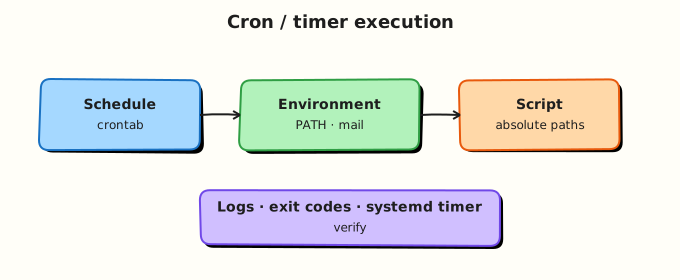
Theory
What it is
cron runs commands on a repeating calendar (minute hour day month weekday). User crontabs are edited with crontab -e and listed with crontab -l. at runs a command once at a given time (atq lists, atrm removes). systemd timers pair a .timer unit with a .service unit; user timers live under ~/.config/systemd/user/.
Why it matters
Unattended jobs are how operations scale. A wrong schedule can miss backups or run too often and overload a system. Silent failures are common: cron uses a minimal environment, so myscript on your interactive PATH may not be found. Timers make status and logs easier on modern Ubuntu hosts. Either way, every lab schedule needs a cleanup step.
How it works
- Script — absolute paths; write logs under
$HOME;set -euo pipefail. - cron — five time fields + command; redirect stdout/stderr to a log.
- at —
echo /path/script | at now + 1 minutefor one-shot tests. - systemd --user —
*.serviceruns the script;*.timersetsOnCalendar=orOnUnitActiveSec=;daemon-reload+enable --now. - Prove — timestamp file grows or appears; list the schedule; then remove it.
Example cron line (every minute — lab only):
Example timer idea: OnCalendar=*:0/1 (every minute) for a short lab, then disable.
Key concepts and comparisons
| Tool | Repeats? | Good for | Watch out for |
|---|---|---|---|
cron | Yes | Simple user/system schedules | Minimal PATH; mail on output |
at | Once | Deferred one-shot work | atd must be running |
| systemd timer | Yes | Apps already on systemd; journal logs | User vs system scope; lingering |
| Pattern | Prefer when | Avoid when |
|---|---|---|
| User crontab | Per-engineer lab jobs | Needing root-only system paths without rights |
| systemd --user timer | Better unit status/logs | Environments without user systemd |
| Absolute paths | Always in schedules | Relying on interactive aliases |
| Cleanup removes unit/cron | Shared practice VMs | Leaving every-minute jobs forever |
Common pitfalls
- Relative paths and missing
PATHin cron. - Forgetting to redirect output — some systems mail you on every run.
- Enabling a every-minute lab timer and never disabling it.
- Editing
/etc/crontabwhen a user crontab was enough. - Assuming
atworks whenatdis not installed or running.
Hands-on Lab
Objective
Create stamp.sh that writes UTC timestamps, schedule it with a user crontab or a systemd --user timer (whichever works on your host), list the job, prove output, then remove the schedule. Workspace: ~/rebash-shell/lab15.
Prerequisites
bash,date- Either
crontaborsystemctl --user - Ability to wait about one minute for a trigger (or run the script once manually as a proof fallback)
Lab environment
Workspace: ~/rebash-shell/lab15
mkdir -p ~/rebash-shell/lab15 && cd ~/rebash-shell/lab15
set -euo pipefail
whoami | tee runner.txt
echo "HOME=$HOME" | tee home.txt
command -v crontab >/dev/null && echo 'crontab=yes' | tee scheduler-tools.txt || echo 'crontab=no' | tee scheduler-tools.txt
systemctl --user status >/dev/null 2>&1 && echo 'user_systemd=yes' | tee -a scheduler-tools.txt || echo 'user_systemd=no' | tee -a scheduler-tools.txt
Expected output
runner.txt, home.txt, and scheduler-tools.txt exist.
Real-world scenario
You need a tiny heartbeat file for a practice monitoring demo: every minute, append a UTC timestamp. You must show the schedule to a reviewer, prove the file updates, then remove the job so the practice VM stays clean.
Step-by-step tasks
Task 1 – Timestamp script
Create stamp.sh:
#!/usr/bin/env bash
set -euo pipefail
LAB="${HOME}/rebash-shell/lab15"
mkdir -p "$LAB"
date -u +%Y-%m-%dT%H:%M:%SZ >> "$LAB/stamps.txt"
echo "stamped=yes" >> "$LAB/stamp-run.log"
Run:
cd ~/rebash-shell/lab15
set -euo pipefail

LAB="$HOME/rebash-shell/lab15"
chmod +x stamp.sh

# Manual once (proof the script works even before the scheduler fires)
./stamp.sh
test -s stamps.txt
grep -E '^[0-9]{4}-' stamps.txt | tee stamps-manual.txt
Expected output
stamps.txt has at least one UTC timestamp line.
Task 2 – Schedule with crontab or systemd --user timer
Create $HOME/.config/systemd/user/rebash-lab15-stamp.service:
[Unit]
Description=REBASH lab15 stamp script

[Service]
Type=oneshot
ExecStart=%h/rebash-shell/lab15/stamp.sh
WorkingDirectory=%h/rebash-shell/lab15
Create $HOME/.config/systemd/user/rebash-lab15-stamp.timer:
[Unit]
Description=REBASH lab15 stamp timer (every minute)

[Timer]
OnCalendar=*:0/1
Persistent=true
Unit=rebash-lab15-stamp.service

[Install]
WantedBy=timers.target
Run:
cd ~/rebash-shell/lab15
set -euo pipefail
LAB="$HOME/rebash-shell/lab15"

schedule_with_cron() {
  # Keep any existing crontab lines that are not ours, then add lab line
  tmp="$(mktemp)"
  crontab -l 2>/dev/null | grep -v 'rebash-shell/lab15/stamp.sh' >"$tmp" || true
  echo "* * * * * $LAB/stamp.sh >> $LAB/cron.log 2>&1" >>"$tmp"
  crontab "$tmp"
  rm -f "$tmp"
  echo "scheduler=cron" | tee schedule-type.txt
  crontab -l | tee crontab-list.txt
  grep -F 'rebash-shell/lab15/stamp.sh' crontab-list.txt
}

schedule_with_user_timer() {
  mkdir -p "$HOME/.config/systemd/user"
  systemctl --user daemon-reload
  systemctl --user enable --now rebash-lab15-stamp.timer
  echo "scheduler=systemd-user" | tee schedule-type.txt
  systemctl --user list-timers --all | tee timers-list.txt
  grep -F 'rebash-lab15-stamp' timers-list.txt
}

if systemctl --user status >/dev/null 2>&1; then
  schedule_with_user_timer
elif command -v crontab >/dev/null 2>&1; then
  schedule_with_cron
else
  echo "ERROR: need systemctl --user or crontab" >&2
  exit 1
fi
Expected output
schedule-type.txt is cron or systemd-user; list file shows the lab job.
Task 3 – Prove run, list jobs, prepare cleanup notes
cd ~/rebash-shell/lab15
set -euo pipefail

before=$(wc -l < stamps.txt | tr -d ' ')
echo "lines_before=$before" | tee prove.txt

# Wait for scheduler (up to ~75s). If the environment cannot fire timers/cron,
# run once more manually and note fallback — still keep the schedule list proof.
set +e
for i in 1 2 3 4 5 6 7 8 9 10 11 12 13 14 15; do
  after=$(wc -l < stamps.txt | tr -d ' ')
  if (( after > before )); then
    echo "lines_after=$after" | tee -a prove.txt
    echo "proof=scheduler_or_overlap" | tee -a prove.txt
    break
  fi
  sleep 5
done
set -e

after=$(wc -l < stamps.txt | tr -d ' ')
if (( after <= before )); then
  ./stamp.sh
  after=$(wc -l < stamps.txt | tr -d ' ')
  echo "lines_after=$after" | tee -a prove.txt
  echo "proof=manual_fallback_scheduler_installed" | tee -a prove.txt
fi
test "$after" -gt "$before"

# List jobs again for the ticket
if grep -q 'systemd-user' schedule-type.txt; then
  systemctl --user list-timers --all | tee timers-list.txt
else
  crontab -l | tee crontab-list.txt
fi

tar -czf schedule-evidence.tgz \
  runner.txt home.txt scheduler-tools.txt \
  stamp.sh stamps.txt stamps-manual.txt stamp-run.log \
  schedule-type.txt prove.txt \
  crontab-list.txt timers-list.txt cron.log 2>/dev/null || \
tar -czf schedule-evidence.tgz \
  runner.txt home.txt scheduler-tools.txt \
  stamp.sh stamps.txt stamps-manual.txt \
  schedule-type.txt prove.txt \
  $(ls crontab-list.txt timers-list.txt stamp-run.log cron.log 2>/dev/null || true)
ls -l schedule-evidence.tgz | tee evidence-ls.txt
Expected output
stamps.txt gained a line; prove.txt records proof; archive exists; schedule still listed until Cleanup.
Validation steps
-
stamp.shis executable and appends UTC timestamps - A user cron line or user timer is installed and listed
-
stamps.txtgrew (scheduler or documented manual fallback after install) - Evidence archive exists under
~/rebash-shell/lab15 - Cleanup (next) removes the schedule
Common errors and fixes
| Error | Cause | Fix |
|---|---|---|
| cron runs but no file | Wrong path / permissions | Use $HOME/rebash-shell/lab15/stamp.sh absolute path |
systemctl --user fails | No user bus / lingering | Use crontab path instead; or enable lingering per your distro docs |
| Timer never fires | Forgot enable --now or daemon-reload | Reload, enable, check list-timers |
at: command not found | at not installed | Optional for this lab — cron/timer is enough |
| Permission denied on crontab | Restricted environment | Ask for crontab allow, or use systemd --user |
Challenge exercise
Add stamp-once.sh that uses at if atd/at works: schedule one run one minute ahead that appends a line at_job=yes to stamps.txt. List with atq, then remove with atrm in Cleanup. If at is unavailable, write at=SKIP to at-status.txt instead — do not fail the challenge for a missing daemon.
Learning outcomes
- Built a stamp script suitable for unattended runs
- Scheduled it with user cron or a systemd user timer
- Listed jobs and proved timestamp output
- Prepared to remove the schedule completely
Cleanup
cd ~/rebash-shell/lab15
set -euo pipefail
LAB="$HOME/rebash-shell/lab15"

# Remove cron line if present
if command -v crontab >/dev/null 2>&1; then
  tmp="$(mktemp)"
  crontab -l 2>/dev/null | grep -v 'rebash-shell/lab15/stamp.sh' >"$tmp" || true
  if [[ -s "$tmp" ]]; then crontab "$tmp"; else crontab -r 2>/dev/null || true; fi
  rm -f "$tmp"
fi

# Remove systemd --user units if present
if systemctl --user status >/dev/null 2>&1; then
  systemctl --user disable --now rebash-lab15-stamp.timer 2>/dev/null || true
  rm -f "$HOME/.config/systemd/user/rebash-lab15-stamp.timer"
  rm -f "$HOME/.config/systemd/user/rebash-lab15-stamp.service"
  systemctl --user daemon-reload 2>/dev/null || true
fi

# Optional at jobs
if command -v atq >/dev/null 2>&1; then
  atq | awk '{print $1}' | while read -r id; do atrm "$id" 2>/dev/null || true; done
fi

echo "cleanup=schedule_removed" | tee cleanup-done.txt
# Keep stamps/evidence if you want; otherwise remove lab files manually
Validation
- Lab finished under
~/rebash-shell/lab15/with evidence files - You can explain cron vs
atvs systemd timers - You use absolute paths and logs in scheduled jobs
- You removed the lab schedule so it does not keep firing
Code Walkthrough
In real operations, scheduling work usually follows this order:
- Make the script safe alone — absolute paths, logs, exit codes
- Choose the scheduler — cron for simple repeats; timers for systemd hosts;
atfor one-shot - Install and list — prove the job exists before you walk away
- Prove a run — output file or journal
- Remove lab/test schedules — never leave every-minute jobs on shared VMs
Production jobs also need monitoring (alert if stamps.txt goes stale).
Security Considerations
- Do not put secrets on cron command lines — they show in
crontab -l - Prefer user timers/cron over root when root is not required
- Lock down write access to scripts that cron executes (avoid world-writable)
- Review
/etc/cron.*and user crontabs in audits - Remember scheduled jobs inherit less environment — do not rely on interactive secrets
Common Mistakes
Relying on interactive PATH in cron
Commands “not found” with no obvious error. Fix: absolute paths; set PATH at the top of the crontab if needed.
Every-minute lab job left forever
Wastes CPU and fills disks. Fix: Cleanup disables/removes the schedule the same day.
No log redirection
Output may be mailed or discarded. Fix: >> "$LAB/cron.log" 2>&1.
Editing the wrong crontab
Root vs user confusion. Fix: know whether you used crontab -e or /etc/crontab fields (user column).
Best Practices
- One script, one purpose; schedule calls the script
- Log with timestamps; rotate logs when jobs are permanent
- Prefer systemd timers when you already operate with journald
- Document the schedule in the change ticket (
crontab -lorlist-timers) - Monitor “last success” time for critical jobs
Troubleshooting
| Symptom | Likely cause | Fix |
|---|---|---|
| No stamp file growth | Scheduler not firing / wrong path | Check list; run script manually; fix path |
permission denied | Script not executable | chmod +x stamp.sh |
| User timer inactive after logout | No lingering | loginctl enable-linger "$USER" (where policy allows) or use cron |
at rejects job | atd down / allowed users | Start atd or use cron/timer |
| Duplicate stamps | Overlapping schedules | Ensure Cleanup removed old lines/units |
Summary
Scheduling runs your Bash work unattended. Use cron or systemd user timers for repeats, and at for one-shot jobs. Always use absolute paths, prove output with a timestamp file, list the job for the ticket, and remove lab schedules when finished. Next, harden failure behaviour in Error Handling, Logging, and Debugging.
Interview Questions
1. What is the main difference between cron and at?
Reveal answer
cron runs on a repeating schedule (calendar fields). at runs a command once at a future time. Use cron for nightly work; use at for “run this after the change window” one-shots. Both need a daemon (cron/crond, atd).
2. Why do cron jobs often fail with “command not found” when the same command works in your SSH session?
Reveal answer
Cron starts with a minimal environment and a short PATH. Interactive aliases and custom PATH entries are missing. Fix with absolute paths to binaries and scripts, or set PATH explicitly in the crontab.
3. When would you choose a systemd timer over cron?
Reveal answer
Choose timers when you want unit dependencies, unified journal logs, systemctl status, and calendar expressions integrated with systemd. Cron remains fine for simple user schedules and hosts where user systemd is awkward.
4. How do you prove a scheduled job actually ran?
Reveal answer
Show an artefact with a fresh timestamp (log line, stamps.txt), plus the schedule listing (crontab -l or systemctl --user list-timers). For systemd, journalctl --user -u name.service helps. Interviewers want evidence, not “I enabled it”.
5. What is dangerous about leaving an every-minute lab timer on a shared practice VM?
Reveal answer
It creates noise, fills disks with logs, and can confuse other learners’ monitoring. Always disable/remove lab schedules in Cleanup the same day you install them.
6. Where should secrets live for scheduled jobs?
Reveal answer
Not in the crontab line. Prefer restricted files with tight permissions, systemd EnvironmentFile= with locked-down mode, or a secret manager the script calls at runtime. Cron listings are often readable by the user and in backups.
7. How does a user systemd timer differ from a system timer?
Reveal answer
User timers live under ~/.config/systemd/user/ and are managed with systemctl --user. They typically run in the user session (linger may be needed after logout). System timers are machine-wide under /etc/systemd/system/ and usually need root to install. Labs should prefer user scope when possible.
Related Tutorials
- Shell Scripting for DevOps Engineers – Overview
- JSON and YAML with jq and yq (previous)
- Error Handling, Logging, and Debugging (next)
- Production Shell Scripting (related)
References
crontab(5)— crontab format- systemd.timer — timer unit settings
at(1)— queue, examine, or delete jobs for later execution- Track index: Shell Scripting for DevOps Engineers