Networking Automation with Shell
Overview
DevOps and platform work depends on the network: Can this URL answer? Which sockets are listening? What is the host’s address? Doing that by hand is fine once; scripts make it repeatable for Continuous Integration (CI), smoke tests after deploy, and incident notes. This tutorial focuses on safe networking automation: curl health checks with timeouts and retries, plus read-only ss / ip snapshots. You will not change firewall rules.
This is Tutorial 13 in Module 13: Networking Automation of the REBASH Academy Shell Scripting for DevOps Engineers series. It is written for Linux administrators, DevOps engineers, Site Reliability Engineering (SRE), and platform engineers. By the end, you will have a health-check script and evidence under ~/rebash-shell/lab13.
In production, a hung curl without --max-time can block a whole pipeline. Retries without a limit can amplify an outage. Destructive firewall commands on a shared jump server can lock everyone out. Prefer observe-and-report first; change network policy through reviewed Infrastructure as Code (IaC) or a change ticket.
Prerequisites
- Linux Admin Automation
- Bash 4.2+ on Linux with outbound HTTPS allowed for a public test URL (or a local endpoint you control)
- Packages:
curl; preferiproute2(ip,ss) over legacynet-tools
Learning Objectives
By the end of this tutorial, you will be able to:
- Write a
curl-based health check with connect/max timeouts - Retry failed checks with a limited loop and clear exit codes
- Capture a read-only
ssandipsnapshot for troubleshooting - Avoid destructive firewall or routing changes in smoke scripts
- Explain when to use
curlversus deeper tools (dig, SSH,rsync)
Architecture
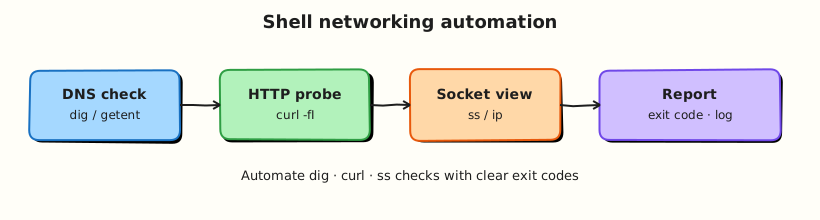
Shell networking helpers call remote endpoints and local sockets, then write evidence. Timeouts and retries protect the caller; snapshots help humans debug without changing the host.
Theory
What it is
Networking automation with shell means using CLI tools from scripts to test reachability and gather facts. Core tools include:
curl— HTTP/HTTPS client (health checks, APIs)ping— ICMP reachability (often blocked in clouds)ss/ip— sockets and addresses (modern replacement fornetstat/ifconfig)dig/getent hosts— Domain Name System (DNS) lookups- SSH /
scp/rsync— remote access and file sync (use with key hygiene; not the focus of the lab)
curl -fsS --connect-timeout 3 --max-time 10 -o /dev/null -w '%{http_code}\n' https://example.com
ss -lntu
ip -br addr
Why it matters
Deploy pipelines need a quick “is the service up?” check. Incidents need a timestamped picture of listening ports and addresses. Without timeouts, scripts hang. Without capped retries, one blip fails a release or floods a dying service. Without discipline, someone pastes a firewall flush “fix” into a shared script and causes a bigger outage.
How it works
- Health check —
curlwith-f(fail on HTTP errors),-S(show errors), timeouts, and-wfor status code. - Retries — loop a few times with
sleep; cap attempts; exit non-zero if all fail. - Local snapshot —
ip -br addr,ss -lntu(listening TCP/UDP) into files. - DNS (optional) —
getent hosts nameordig +shortwhen debugging names. - Remote file ops —
scp/rsyncfor copies; keep keys and host-key policy under team standards.
for i in 1 2 3; do
  code=$(curl -fsS --connect-timeout 3 --max-time 10 \
    -o /dev/null -w '%{http_code}' "$URL") && break
  sleep 2
done
Do not open or flush firewalls from a smoke-test script.
Key concepts and comparisons
| Tool | Use | Caution |
|---|---|---|
curl | HTTP(S) health and APIs | Always set timeouts |
ping | Quick ICMP check | Often blocked; not equal to “app up” |
ss | Listening / established sockets | Read-only snapshot |
ip | Addresses and routes | Prefer ip over ifconfig |
dig | DNS debugging | Cache vs authoritative answers |
SSH/rsync | Remote ops | Key hygiene; least privilege |
| Pattern | Prefer when | Avoid when |
|---|---|---|
| Timeouts + capped retries | CI smoke tests | Infinite retry loops |
ss/ip snapshot | Incident evidence | Changing firewall in the same script |
| HTTPS URL you control | Production checks | Hitting random third parties without policy |
| Exit non-zero on failure | Gates and alerts | Always swallowing errors with \|\| true |
Common pitfalls
curlwithout--max-timehanging a job forever.- Treating HTTP 200 from a load balancer as “app healthy” without a real health path.
- Using
pingalone as the only readiness check. - Changing
iptables/nftablesorufwfrom a tutorial smoke script. - Printing tokens from
Authorizationheaders into logs.
Hands-on Lab
Objective
Build healthcheck.sh that retries curl against a URL with timeouts, prove success and failure paths, and capture a safe ss/ip snapshot under ~/rebash-shell/lab13. No firewall changes.
Prerequisites
curl,ss,ip(fromiproute2on Ubuntu)- Outbound HTTPS to
https://example.com(or setURLto another safe endpoint)
Lab environment
Workspace: ~/rebash-shell/lab13
mkdir -p ~/rebash-shell/lab13 && cd ~/rebash-shell/lab13
set -euo pipefail
command -v curl | tee curl-path.txt
command -v ss | tee ss-path.txt
command -v ip | tee ip-path.txt
Expected output
Paths for curl, ss, and ip are recorded.
Real-world scenario
After each deploy to a practice VM, CI should confirm the health URL answers within a few seconds. If the check fails a few times, the job fails. Operators also want a listening-port snapshot attached to the ticket — without anyone touching the firewall.
Step-by-step tasks
Task 1 – curl health check with retries and timeouts
Create healthcheck.sh:
#!/usr/bin/env bash
set -euo pipefail

URL="${URL:-https://example.com}"
RETRIES="${RETRIES:-3}"
SLEEP_SECS="${SLEEP_SECS:-2}"
CONNECT_TIMEOUT="${CONNECT_TIMEOUT:-3}"
MAX_TIME="${MAX_TIME:-10}"
ROOT="$(cd "$(dirname "${BASH_SOURCE[0]}")" && pwd)"
RESULT_FILE="${RESULT_FILE:-$ROOT/health-result.txt}"

: > "$RESULT_FILE"
attempt=1
code="000"
while (( attempt <= RETRIES )); do
  set +e
  code=$(curl -fsS \
    --connect-timeout "$CONNECT_TIMEOUT" \
    --max-time "$MAX_TIME" \
    -o /dev/null \
    -w '%{http_code}' \
    "$URL" 2>"$ROOT/curl-stderr.txt")
  ec=$?
  set -e
  echo "attempt=${attempt} curl_exit=${ec} http_code=${code}" | tee -a "$RESULT_FILE"
  if [[ "$ec" -eq 0 && "$code" =~ ^[23][0-9][0-9]$ ]]; then
    echo "health=OK url=${URL} http_code=${code}" | tee -a "$RESULT_FILE"
    exit 0
  fi
  if (( attempt < RETRIES )); then
    sleep "$SLEEP_SECS"
  fi
  attempt=$((attempt + 1))
done

echo "health=FAIL url=${URL} last_http_code=${code}" | tee -a "$RESULT_FILE"
exit 1
Run:
cd ~/rebash-shell/lab13
set -euo pipefail

chmod +x healthcheck.sh

RESULT_FILE="$PWD/health-result.txt" URL=https://example.com ./healthcheck.sh
grep -q 'health=OK' health-result.txt
Expected output
health-result.txt contains health=OK and an HTTP 2xx/3xx code.
Task 2 – Fail path with a bad URL
cd ~/rebash-shell/lab13
set -euo pipefail

set +e
RESULT_FILE="$PWD/health-result-fail.txt" \
  URL=https://example.invalid \
  RETRIES=2 SLEEP_SECS=1 CONNECT_TIMEOUT=2 MAX_TIME=3 \
  ./healthcheck.sh
ec=$?
set -e
echo "exit_code=$ec" | tee fail-exit.txt
test "$ec" -ne 0
grep -q 'health=FAIL' health-result-fail.txt
Expected output
Non-zero exit; health-result-fail.txt contains health=FAIL.
Task 3 – ss/ip snapshot (read-only)
cd ~/rebash-shell/lab13
set -euo pipefail

{
  echo "=== ip addresses ==="
  ip -br addr
  echo
  echo "=== listening sockets (TCP/UDP) ==="
  ss -lntu
  echo
  echo "=== DNS quick check ==="
  getent hosts example.com || true
} | tee net-snapshot.txt

test -s net-snapshot.txt
grep -Eq 'LISTEN|udp|TCP|tcp' net-snapshot.txt || grep -q 'addr' net-snapshot.txt

tar -czf net-evidence.tgz \
  curl-path.txt ss-path.txt ip-path.txt \
  healthcheck.sh health-result.txt health-result-fail.txt fail-exit.txt \
  net-snapshot.txt curl-stderr.txt
ls -l net-evidence.tgz | tee evidence-ls.txt
Expected output
net-snapshot.txt is non-empty; net-evidence.tgz exists. No firewall commands were run.
Validation steps
-
./healthcheck.shsucceeds againsthttps://example.com(or yourURL) - Bad URL path exits non-zero with
health=FAIL -
net-snapshot.txtincludesipandssoutput - Lab used no
iptables/nft/ufwchanges -
net-evidence.tgzexists under~/rebash-shell/lab13
Common errors and fixes
| Error | Cause | Fix |
|---|---|---|
curl: (6) Could not resolve host | DNS or offline | Check network; use a reachable URL |
| Hang then CI timeout | Missing --max-time | Keep connect and max timeouts as in the lab |
ss: command not found | Old image / missing iproute2 | sudo apt-get install -y iproute2 on Ubuntu practice VM |
| False OK on HTTP 404 | Forgot -f | Keep -fsS so HTTP errors fail |
| Corporate proxy errors | Proxy required | Export https_proxy per your lab network policy |
Challenge exercise
Add optional header support: if HEALTH_HEADER is set (for example X-Lab: rebash), pass -H "$HEALTH_HEADER" to curl. Prove with a run that logs header_set=yes in the result file when the variable is present, and header_set=no when absent. Do not log secret bearer tokens.
Learning outcomes
- Built a timeout-aware
curlhealth check with capped retries - Proved both OK and FAIL paths with exit codes
- Captured a read-only
ss/ipsnapshot for tickets - Avoided destructive firewall changes
Cleanup
cd ~/rebash-shell/lab13
set -euo pipefail
# Keep evidence if you want; otherwise:
# rm -f net-evidence.tgz *.txt
# Optional: rm -f healthcheck.sh
Validation
- Lab finished under
~/rebash-shell/lab13/with evidence files - You can explain why
--connect-timeoutand--max-timematter - You can describe capped retries versus infinite loops
- You know why smoke scripts should not change firewalls
Code Walkthrough
In real pipelines, networking smoke checks usually follow this order:
- Define URL and timeouts — never rely on curl defaults alone
- Retry with a cap — small sleep; fail clearly after N tries
- Record HTTP code and exit — machines need exit codes; people need files
- Snapshot sockets/addresses — attach to the ticket when debugging
- Leave policy alone — firewall and routes change through review, not smoke scripts
SSH and rsync come next for remote file work; keep the same timeout and least-privilege habits.
Security Considerations
- Do not put API tokens in command lines that appear in
ps— prefer headers from a restricted env or a secret store - Prefer HTTPS and certificate validation (
curl -fwithout insecure-kin production) - Snapshot files may show internal bind addresses — limit who can read them
- Never embed
iptables -F/ufw disablein health scripts - Validate
URLschemes (https://) before calling curl in shared tools
Common Mistakes
No timeout on curl
The job hangs until an external limit kills it. Fix: always set --connect-timeout and --max-time.
Infinite retries
You can DDoS your own failing service. Fix: cap attempts; alert after failure.
Ping-only readiness
ICMP can work while the app is down (or the opposite). Fix: hit the real HTTP health path.
Firewall changes in a smoke script
One mistake locks the host. Fix: read-only checks here; policy via IaC and tickets.
Best Practices
- One health script, parameters via environment variables
- Log attempt number, HTTP code, and final
health=OK|FAIL - Use
ssandipinstead of deprecatednetstat/ifconfigwhere possible - Keep DNS debugging (
dig) separate from the default smoke path - Pair deploy jobs with a post-deploy health gate
Troubleshooting
| Symptom | Likely cause | Fix |
|---|---|---|
| Intermittent FAIL | Cold start / blip | Slightly increase retries; fix app flakiness |
| Works on laptop, fails in CI | Egress / DNS / proxy | Fingerprint network in CI; set proxy |
HTTP 000 | Connection never completed | Check stderr; timeouts; DNS |
Empty ss output | Permissions / namespace | Run on the host network namespace; check ss -lntu |
| Certificate errors | Broken CA store / wrong host | Fix certs; avoid -k except in isolated labs |
Summary
Networking automation in the shell should answer “is it up?” and “what does this host look like?” with timeouts, capped retries, and read-only snapshots. Leave firewall changes out of smoke tests. Next, parse structured config with JSON and YAML with jq and yq.
Interview Questions
1. Why must production curl health checks set --max-time (and usually --connect-timeout)?
Reveal answer
Without a max time, curl can block until TCP stalls for a long time, holding a CI runner or cron slot. --connect-timeout bounds the TCP/TLS connect phase; --max-time bounds the whole transfer. Together they make failure fast and predictable.
2. How do you design retries so they help without making an outage worse?
Reveal answer
Cap attempts (for example 3), sleep briefly between tries, fail with a clear non-zero exit, and avoid thundering-herd loops across hundreds of runners. Retries absorb short blips; they should not hammer a dying dependency forever.
3. Why is ping alone a weak readiness check for an HTTPS API?
Reveal answer
ICMP can be blocked while HTTP works, or ICMP can succeed while the application process is down. Readiness should call the real health endpoint (and check status codes) whenever possible.
4. What belongs in an incident “network snapshot” from a Linux host?
Reveal answer
Timestamp, ip -br addr (and maybe routes), listening sockets via ss -lntu, and a DNS lookup for the failing name. That evidence helps compare “before/after” without changing firewall state.
5. When would you use dig in automation versus only curl?
Reveal answer
Use dig (or getent hosts) when the failure looks like name resolution — wrong IP, NXDOMAIN, or split DNS. Use curl when you need application-level HTTP success. Many teams run a quick DNS assert before the HTTP gate.
6. Why should smoke scripts avoid changing iptables/nftables/ufw?
Reveal answer
Smoke tests run often and sometimes in parallel. A bad rule or flush can drop SSH and lock operators out. Firewall policy belongs in reviewed IaC or a controlled change, with a rollback plan — not in a health-check script.
7. How do you keep secrets out of curl debug output?
Reveal answer
Do not pass bearer tokens on the command line if you can avoid it; do not run curl -v in CI logs when headers contain credentials; redact result files. Prefer short-lived tokens from a secret store and log only status codes.
Related Tutorials
- Shell Scripting for DevOps Engineers – Overview
- Linux Admin Automation (previous)
- JSON and YAML with jq and yq (next)
- Troubleshooting Shell Scripts (related)
References
- curl man page — timeouts and exit codes
ss(8)— socket statisticsip(8)— show / manipulate routing and devices- Track index: Shell Scripting for DevOps Engineers