Shell Fundamentals — Bash vs sh and Execution
Overview
A shell is the program that reads your commands, expands variables and file names, runs other programs, and reports whether each command succeeded. On Linux you type into a shell every day — when you open a terminal, when Secure Shell (SSH) logs you into a server, and when Continuous Integration (CI) or cron runs a job without a human at the keyboard.
The most common interactive shell on Ubuntu is Bash (Bourne Again SHell). Many scripts also start with #!/bin/sh. On Debian and Ubuntu, /bin/sh is usually dash, a smaller POSIX-style shell — not Bash. Dash rejects Bash-only features such as [[ ]], arrays, and source with some syntax. If your script “works in the terminal” but fails under sh, you are often seeing this difference. Learning to fingerprint the interpreter (bash --version, readlink -f /bin/sh) stops that confusion early.
Interactive shells (your terminal) and non-interactive shells (CI, cron, bash script.sh) also start differently. Interactive Bash may load ~/.bashrc, aliases, and a rich PATH. Cron and CI often start with a short PATH, no aliases, and fewer profile files. That is why a command that works over SSH can fail in a pipeline. In this tutorial you will compare Bash and sh, read the shell option string in $-, and simulate a thin PATH the way schedulers do.
This is Tutorial 1 in Module 1: Shell Fundamentals of the REBASH Academy Shell Scripting for DevOps Engineers series. It is written for Linux administrators, DevOps engineers, Site Reliability Engineering (SRE), and platform engineers. By the end you will explain shell execution clearly in an interview or a change ticket.
Prerequisites
- Linux for Cloud & DevOps Engineers – Overview (basic files, permissions, and processes)
- A practice Ubuntu 22.04/24.04 machine (VM, cloud instance, or Windows Subsystem for Linux) with Bash installed
- Comfort opening a terminal and editing a text file
Learning Objectives
By the end of this tutorial, you will be able to:
- Explain what a shell does and how Bash differs from POSIX
sh/ dash on Ubuntu - Choose a shebang (
#!/usr/bin/env bashvs#!/bin/sh) for the right interpreter - Fingerprint interactive vs non-interactive shells using
$-,env, and startup behaviour - Show why a thin
PATHbreaks scripts that work in an SSH session - Decide when a script should run as a child process instead of being
sourced
Architecture
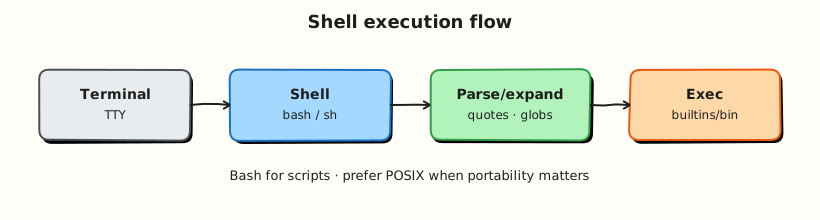
The shell sits between people or automation and the tools they call (systemctl, curl, kubectl). The shebang and startup mode decide which interpreter runs and what environment it inherits.
Theory
What it is
A shell is a command interpreter. It reads text from a keyboard or a script file, performs expansions, starts processes, and returns an exit status (0 for success, non-zero for failure).
| Shell | Typical path | Notes |
|---|---|---|
| Bash | /bin/bash | Full features used in this course |
| dash | /bin/dash (often linked as /bin/sh) | POSIX-focused; common as sh on Ubuntu |
| zsh | /usr/bin/zsh | Popular interactive shell; not required here |
echo "$BASH_VERSION"          # set only when the interpreter is Bash
readlink -f /bin/sh           # often .../dash on Ubuntu
ls -l /bin/sh
Why it matters
DevOps work mixes three worlds: your laptop terminal, remote SSH sessions, and headless jobs (cron, systemd timers, GitHub Actions, GitLab CI). Scripts that depend on aliases, a custom PATH, or Bashisms under #!/bin/sh fail in production while “working locally”. Fingerprinting the interpreter and environment is a core ops skill — the same idea as checking which python before you trust a pipeline.
How it works
- You type a command or run a script — the kernel starts the interpreter named in the shebang, or the shell you called (
bash script.sh). - The new process inherits environment variables from the parent (unless started with something like
env -i). - Startup files may run — login shells often read
/etc/profileand~/.profile; interactive Bash often reads~/.bashrc. Non-interactive script runs usually skip interactive rc files. - The script finishes — the exit status of the last command (or an explicit
exit N) becomes the process exit code that CI and monitoring use.
source script.sh (or . script.sh) runs in the current shell. That loads functions into your session, but exit or cd inside the file also affect your live terminal. Prefer a separate process (./script.sh or bash script.sh) for jobs.
echo "options=$-"
# Interactive Bash often includes 'i' in $-
bash -c 'echo noninteractive options=$-'
Key concepts and comparisons
| Mode | Typical trigger | What you get |
|---|---|---|
| Interactive | SSH login, desktop terminal | Prompt, history, often aliases and ~/.bashrc |
| Non-interactive | bash script.sh, cron, CI | Leaner startup; do not rely on aliases |
| Login | SSH often; bash -l | Profile files for PATH and umask |
| Child process | ./script.sh | Clean isolation; preferred for automation |
source | Loading a library | Mutates current shell — use carefully |
| Shebang | Prefer when | Avoid when |
|---|---|---|
#!/usr/bin/env bash | Ops scripts in this course | Strict POSIX-only policy |
#!/bin/bash | Fixed image path is known | Portable images with Bash only on PATH |
#!/bin/sh | True POSIX scripts for dash | Scripts that use [[ ]], arrays, or Bashisms |
Common pitfalls
- Writing Bashisms under
#!/bin/shand wondering why dash says[[: not found. - Assuming cron or CI has the same
PATHas your SSH session. - Using
sourcefor scheduled jobs soexitcloses the wrong shell. - Relying on aliases defined only in interactive
~/.bashrc. - Leaving required settings only in profile files that non-interactive shells never read.
Hands-on Lab
Objective
On Ubuntu, fingerprint Bash vs sh/dash, compare interactive and non-interactive option strings, and prove that a thin PATH can hide commands that work in a normal terminal. Save evidence under ~/rebash-shell/lab01.
Prerequisites
- Ubuntu 22.04/24.04 (or Debian) with Bash
- Packages:
bash,coreutils(already present);dashis usual as/bin/sh - No root required for this lab
Lab environment
Workspace: ~/rebash-shell/lab01
mkdir -p ~/rebash-shell/lab01 && cd ~/rebash-shell/lab01
whoami | tee lab-user.txt
bash --version | head -n1 | tee bash-version.txt
readlink -f /bin/sh | tee sh-target.txt
Expected output
bash-version.txt shows a Bash version line; sh-target.txt usually contains dash on Ubuntu.
Real-world scenario
A deploy script works on your laptop but fails in CI with command not found and [[: not found. The platform team asks you to prove whether the job uses Bash or sh, and whether CI’s PATH is thinner than an SSH session. You capture fingerprints and a PATH simulation for the ticket.
Step-by-step tasks
Task 1 – Compare Bash and /bin/sh (dash)
Write the same test twice: once for Bash, once for sh. Bash accepts [[ ]]. POSIX sh on Ubuntu (dash) does not.
Create bash-only.sh:
#!/usr/bin/env bash
# Bash-only test: [[ ]] is not POSIX
if [[ -n "${HOME:-}" ]]; then
  echo "bash_ok=yes"
  echo "bash_version=${BASH_VERSION:-unset}"
else
  echo "bash_ok=no"
  exit 1
fi
Create sh-posix.sh:
#!/bin/sh
# Same idea with POSIX [ ] so dash can run it
if [ -n "${HOME:-}" ]; then
  echo "sh_ok=yes"
else
  echo "sh_ok=no"
  exit 1
fi
Create bashism-under-sh.sh:
Run:
cd ~/rebash-shell/lab01

chmod +x bash-only.sh sh-posix.sh

./bash-only.sh | tee bash-run.txt
./sh-posix.sh | tee sh-run.txt

# Prove dash rejects Bash [[ ]]
chmod +x bashism-under-sh.sh
./bashism-under-sh.sh >bashism-sh.out 2>&1 || true
grep -E '\[\[|not found|Unexpected|Syntax' bashism-sh.out | tee bashism-error.txt
test -s bashism-error.txt
Expected output
bash-run.txt contains bash_ok=yes; sh-run.txt contains sh_ok=yes; bashism-error.txt shows an error about [[ (wording varies by dash version).
Task 2 – Interactive vs non-interactive fingerprint
Capture $- and a small environment sample from your current shell and from a non-interactive bash -c child.
cd ~/rebash-shell/lab01

{
  echo "shell_path=$(command -v bash)"
  echo "options_interactive=$-"
  echo "HOME=${HOME:-}"
  echo "USER=${USER:-}"
  echo "PATH_len={{ '${#PATH}' }}"
} | tee fingerprint-interactive.txt

bash -c '
{
  echo "options_noninteractive=$-"
  echo "HOME=${HOME:-}"
  echo "PATH_len={{ '${#PATH}' }}"
  case "$-" in
    *i*) echo "has_i_flag=yes" ;;
    *)   echo "has_i_flag=no" ;;
  esac
}
' | tee fingerprint-noninteractive.txt

grep -q 'has_i_flag=no' fingerprint-noninteractive.txt
grep -q 'options_interactive=' fingerprint-interactive.txt
Expected output
Non-interactive fingerprint shows has_i_flag=no. Your interactive $- often includes i when you run these lines in a normal terminal.
Task 3 – Thin PATH simulation (cron/CI style)
Simulate a minimal environment like many schedulers: only /usr/bin and /bin. Show that a command on an extended PATH can disappear.
cd ~/rebash-shell/lab01

# Record full PATH and where common tools resolve
{
  echo "full_PATH=$PATH"
  echo -n "which_hostname="
  command -v hostname || echo "missing"
  echo -n "which_bash="
  command -v bash || echo "missing"
} | tee path-full.txt

# Thin PATH: keep only core bin dirs
env -i PATH="/usr/bin:/bin" HOME="$HOME" USER="$USER" bash -c '
{
  echo "thin_PATH=$PATH"
  echo -n "which_hostname="
  command -v hostname || echo "missing"
  echo -n "which_custom="
  command -v my-custom-tool 2>/dev/null || echo "missing"
}
' | tee path-thin.txt

grep -q 'thin_PATH=/usr/bin:/bin' path-thin.txt
grep -q 'which_hostname=' path-thin.txt

tar -czf shell-fundamentals-evidence.tgz \
  lab-user.txt bash-version.txt sh-target.txt \
  bash-run.txt sh-run.txt bashism-error.txt \
  fingerprint-interactive.txt fingerprint-noninteractive.txt \
  path-full.txt path-thin.txt
ls -l shell-fundamentals-evidence.tgz | tee evidence-ls.txt
Expected output
path-thin.txt shows PATH=/usr/bin:/bin; evidence archive is non-empty.
Validation steps
-
./bash-only.shprintsbash_ok=yes -
./sh-posix.shprintssh_ok=yesunder/bin/sh - Running Bashisms under
#!/bin/shproduces an error file - Non-interactive fingerprint reports
has_i_flag=no -
shell-fundamentals-evidence.tgzexists under~/rebash-shell/lab01
Common errors and fixes
| Error | Cause | Fix |
|---|---|---|
Permission denied | Missing execute bit | chmod +x script.sh |
/bin/sh is Bash on some images | Distro choice | Still test with dash script.sh if installed |
No i in interactive $- | Commands run via non-interactive wrapper | Run Task 2 in a normal terminal, not only bash -c |
hostname: command not found in thin PATH | Tool not under /usr/bin or /bin | Use absolute paths or set PATH in the script |
Challenge exercise
Create interpreter-report.sh that accepts one argument (a script path), prints whether the shebang line mentions bash or sh, runs head -n1 on that file, and writes report.txt with shebang=... and interpreter_guess=bash|sh|other. Make it executable and run it against bash-only.sh and sh-posix.sh.
Learning outcomes
- Compared Bash and Ubuntu
/bin/sh(dash) with runnable proof - Fingerprinted interactive vs non-interactive shells
- Simulated a thin PATH like cron/CI and packaged evidence
Cleanup
cd ~/rebash-shell/lab01
rm -f bashism-under-sh.sh bashism-sh.out
# Keep evidence archive and fingerprint files for review, or remove all:
# rm -rf ~/rebash-shell/lab01
Validation
- Lab finished under
~/rebash-shell/lab01/with evidence files - You can explain Bash vs
sh/dash and why shebang choice matters - You can explain why cron/CI environments break “works on my laptop” scripts
- You know when to use a child process instead of
source
Code Walkthrough
For shell fundamentals, production thinking follows this order:
- Name the interpreter — shebang matches the language features you use
- Fingerprint early — log shell,
$-, andPATHlength in CI debug jobs - Do not trust interactive setup — set
PATHand required variables inside the script - Prefer child processes —
./job.shfor automation;sourceonly for libraries - Prove Bashisms — if policy requires
#!/bin/sh, avoid[[ ]], arrays, and Bash-only syntax
Later modules add strict mode (set -euo pipefail), quoting, and control flow. Those features assume you already chose the correct interpreter.
Security Considerations
- Treat environment variables from CI and users as untrusted input until validated
- Do not put secrets in world-readable profile files that every shell loads
- Prefer explicit
PATHin automation so attackers cannot inject writable directories early onPATH - Avoid
sourceof files from untrusted paths — that runs code in your current shell - Log interpreter and environment fingerprints in incident tickets, not passwords or tokens
Common Mistakes
Bashisms under #!/bin/sh
Ubuntu’s /bin/sh is often dash. Fix: use #!/usr/bin/env bash for Bash scripts, or rewrite tests with POSIX [ ].
Assuming CI has your SSH PATH
Custom tool directories disappear in thin environments. Fix: set PATH at the top of the script or call absolute paths.
Using source for scheduled jobs
exit inside a sourced file can end the parent shell or agent session. Fix: run jobs as ./script.sh or bash script.sh.
Debugging only in an interactive terminal
Aliases and rc files hide the real failure. Fix: reproduce with env -i PATH=/usr/bin:/bin bash script.sh.
Best Practices
- Default this course to
#!/usr/bin/env bashunless a standard requires POSIXsh - Make scripts self-contained: set
PATH,umask, and required variables inside the file - Document the minimum Bash version if you use newer features
- Add a one-line environment fingerprint in CI debug mode
- Keep interactive customisation in
~/.bashrc; keep automation independent of it
Troubleshooting
| Symptom | Likely cause | Fix |
|---|---|---|
[[: not found | Script run by dash/sh | Fix shebang to Bash or rewrite tests |
command not found in cron only | Thin PATH | Set PATH in the script or crontab |
Works with bash script.sh, fails with ./script.sh | Bad or missing shebang | Fix line 1; ensure Unix line endings |
Variables missing after ./script.sh | Child process isolation | Export in the caller, or source only if intentional |
| Different behaviour over SSH vs local | Login vs non-login startup files | Set required env inside the script |
Summary
A shell interprets commands; Bash and Ubuntu’s sh (often dash) are not the same. Interactive terminals load more convenience than cron or CI. Fingerprint the interpreter, option flags in $-, and PATH before you chase application bugs. Next, turn commands into a reviewable file with a shebang, execute bit, and exit codes in Writing Your First Script.
Interview Questions
1. What is the difference between Bash and /bin/sh on a typical Ubuntu server, and why does it matter for scripts?
Reveal answer
On many Ubuntu systems /bin/sh points to dash, a POSIX-oriented shell, not Bash. Bash supports extras such as [[ ]], arrays, and certain expansions. A script with #!/bin/sh that uses Bashisms fails under dash even if the same text works when you run bash script.sh. For ops automation in this course, prefer #!/usr/bin/env bash unless you deliberately write portable POSIX sh.
2. A script works in your SSH session but fails in cron with command not found. What do you check first?
Reveal answer
Compare PATH and the environment. Cron often starts with a minimal PATH and skips interactive ~/.bashrc aliases. Fingerprint with a log line that prints PATH and command -v tool. Fix by setting PATH inside the script (or in the crontab) and using absolute paths for critical binaries. Do not assume the interactive shell and cron share the same environment.
3. What does the i flag in $- tell you, and how would you start a non-interactive Bash for a test?
Reveal answer
In Bash, $- lists option flags. The i flag means the shell is interactive. Non-interactive runs (scripts, bash -c '...', most CI steps) usually omit i. To test automation behaviour, run bash script.sh or bash -c '...' and compare fingerprints to your login shell instead of trusting only the terminal prompt.
4. When is source script.sh appropriate, and when is it dangerous?
Reveal answer
Use source (or .) to load functions or variables into the current shell, for example a small library of helpers. It is dangerous for jobs that call exit, change directories, or alter traps, because those side effects hit your live session or CI agent. Scheduled automation should run as a separate process with ./script.sh or bash script.sh.
5. Why might #!/usr/bin/env bash be preferred over #!/bin/bash on mixed images?
Reveal answer
env searches PATH for bash, which helps when Bash is installed in a non-default location (some containers or custom prefixes). #!/bin/bash is fine when every target image guarantees that path. In interviews, say you pick based on image standards, then prove the shebang with head -n1 and a smoke run on the target OS.
6. How would you prove in a change ticket that a failure is “wrong interpreter” rather than “wrong application logic”?
Reveal answer
Capture head -n1 script.sh, readlink -f /bin/sh, bash --version, and a failing run under /bin/sh versus a passing run under Bash. Attach the stderr that mentions [[ or a syntax error. That evidence shows an interpreter mismatch before anyone debugs business logic.
7. What is the difference between a login shell and a non-login interactive shell for environment setup?
Reveal answer
A login shell typically reads profile files such as /etc/profile and ~/.profile (Bash may use ~/.bash_profile). A non-login interactive Bash often reads ~/.bashrc. SSH sessions are often login shells; many script invocations are neither login nor interactive. Production scripts should set required variables themselves so they do not depend on which startup files ran.
Related Tutorials
- Shell Scripting for DevOps Engineers – Overview
- Linux for Cloud & DevOps Engineers – Overview (foundation)
- Writing Your First Script (next)
- Variables, Quoting, and Arithmetic
References
- GNU Bash manual — Bash reference
- POSIX shell command language — portable
shbehaviour dash(1)— Ubuntu dash man-page- ShellCheck — static checks for shell scripts
- Track index: Shell Scripting for DevOps Engineers