Text Processing in Shell Scripts
Overview
Logs and reports are text. In shell scripts you combine grep (select lines), sed (edit streams), and awk (split fields and compute) into pipelines that turn raw logs into clear answers: how many errors, which service failed, what was the last status. You wrap those tools in Bash with set -euo pipefail, write outputs to files, and assert results with grep -q / test so Continuous Integration (CI) can trust the script. In this tutorial you will process sample application logs under ~/rebash-shell/lab10 end to end.
DevOps, Site Reliability Engineering (SRE), and platform engineers live in text: build logs, Nginx access lines, journalctl exports, and CSV-like metrics. Python or jq are better for heavy structured data, but a small grep | awk pipeline is still the fastest way to answer “how many 5xx since the last deploy?” on a jump server.
In production, pipelines must be reproducible and bounded: work on a copied sample or a time-sliced file, not on a live multi-gigabyte log without limits. Prefer explicit field separators in awk, avoid destructive sed -i without a backup in shared trees, and keep machine-readable summaries for tickets.
This is Tutorial 10 in Module 10: Text Processing of the REBASH Academy Shell Scripting for DevOps Engineers series. It is written for Linux administrators, DevOps engineers, SRE, and platform engineers. By the end, you will ship a small log report script with asserts and evidence.
Prerequisites
- File Operations in Shell
- Bash 4.2+ with
grep,sed,awk,sort,uniq(normal Linux userland) - Comfort with pipes and redirection from Module 4
Learning Objectives
By the end of this tutorial, you will be able to:
- Filter log lines with
grep -Eand count matches in a script - Normalise or rewrite fields with
sedin a pipeline - Extract columns and aggregate with
awk - Chain
grep | sed | awk(plussort/uniqwhen needed) inside a Bash script - Assert expected counts/strings so the script fails when data is wrong
Architecture
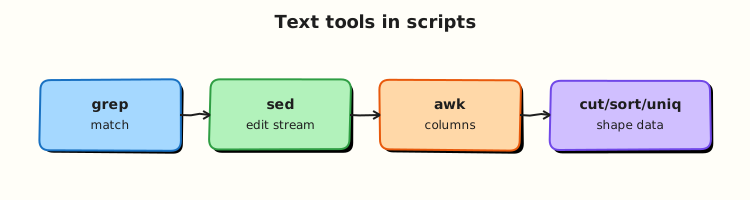
Raw text enters a pipeline: select (grep) → transform (sed) → field logic (awk) → evidence files and asserts in Bash.
Theory
What it is
grep— print lines that match a pattern (-Eextended regex,-ccount,-vinvert).sed— stream editor; common ops are substitute (s/old/new/) and delete lines.awk— split each line into fields ($1,$2, …), filter, and print summaries.
grep -E 'ERROR|FATAL' app.log
sed -E 's/Prod/prod/g' app.log
awk -F' ' '/ERROR/ { print $1, $3 }' app.log
Why it matters
Manual scrolling does not scale in an incident. A scripted pipeline gives the same answer every time and can run in CI against fixture logs. Wrong field separators silently produce empty columns; missing pipefail can hide a failed grep in the middle of a pipeline. Learning a small, correct toolchain prevents both slow human searches and false-green jobs.
How it works
- Select —
grep -Enarrows to interesting lines (errors, status codes). - Transform —
sednormalises tokens (environment names, strips noise prefixes). - Extract / aggregate —
awkprints fields, counts per key, or computes totals. - Compose in Bash — redirect to
out/*.txt, then assert withtest/grep -q. - Fail loudly —
set -euo pipefailso a broken stage fails the script.
set -euo pipefail
grep -E 'ERROR' sample.log \
  | sed -E 's/[[:space:]]+/ /g' \
  | awk '{ print $2 }' \
  | sort | uniq -c | sort -nr
Related tools: cut (simple columns), tr (character translate), sort/uniq (frequency). Use them when they keep the pipeline clearer than a large awk program.
Key concepts and comparisons
| Tool | Best at | Weak at |
|---|---|---|
grep | Line selection | Multi-field joins |
sed | Small substitutions | Complex record logic |
awk | Fields, counts, reports | Full JSON/YAML (use jq/yq) |
cut | Single delimiter columns | Regex-heavy lines |
sort/uniq | Frequencies | Unsorted unique without sort |
| Pattern | Prefer |
|---|---|
| Fixture logs in the repo/lab | Parsing live /var/log without a copy |
| Assert counts in CI | “Looks fine” visual checks |
awk -F',' explicit FS | Guessing columns by eyeballing spaces |
Common pitfalls
- Forgetting
set -o pipefailso a failedgrepstill yields exit 0 fromawk. - Using
greppatterns that match too much (errorinsideterror). - In-place
sed -ion the only copy of a file. - Assuming one space between fields when logs use variable whitespace — prefer
awkdefault splitting or tidy withsedfirst. - Trying to parse JSON with
sedalone — usejqin the JSON module.
Hands-on Lab
Objective
Under ~/rebash-shell/lab10, create sample logs, write report.sh that runs a grep | sed | awk pipeline with asserts, produce a severity summary, and pack evidence.
Prerequisites
grep,sed,awk,sort,uniq, Bash- Write access under your home directory
Lab environment
Workspace: ~/rebash-shell/lab10
mkdir -p ~/rebash-shell/lab10/out ~/rebash-shell/lab10/fixtures
cd ~/rebash-shell/lab10
set -euo pipefail
bash --version | head -n1 | tee out/bash-version.txt
Expected output
out/bash-version.txt mentions bash.
Real-world scenario
After a deploy, on-call wants a one-page summary from the app log: count of ERROR and WARN lines, a list of services that logged errors, and proof the parser still works in CI against a fixture file. You build report.sh that fails if the fixture counts drift.
Step-by-step tasks
Task 1 – Create fixture logs
Create fixtures/app.log:
2026-08-02T10:00:01Z INFO billing payment ok
2026-08-02T10:00:02Z WARN catalog cache miss
2026-08-02T10:00:03Z ERROR billing db timeout
2026-08-02T10:00:04Z INFO auth login ok
2026-08-02T10:00:05Z ERROR auth token expired
2026-08-02T10:00:06Z WARN billing retry scheduled
2026-08-02T10:00:07Z ERROR catalog upstream 503
2026-08-02T10:00:08Z INFO catalog refresh ok
Run:
cd ~/rebash-shell/lab10
set -euo pipefail

wc -l fixtures/app.log | tee out/fixture-wc.txt
test "$(wc -l <fixtures/app.log | tr -d ' ')" -eq 8
Expected output
out/fixture-wc.txt shows 8 lines.
Task 2 – grep + sed + awk report script with asserts
Create report.sh:
#!/usr/bin/env bash
set -euo pipefail

root="$(cd "$(dirname "$0")" && pwd)"
cd "$root"
mkdir -p out

logfile="${1:-fixtures/app.log}"
[[ -f "$logfile" ]] || { printf 'missing log: %s\n' "$logfile" >&2; exit 1; }

# Select ERROR/WARN, normalise whitespace, emit severity and service
grep -E ' (ERROR|WARN) ' "$logfile" \
  | sed -E 's/[[:space:]]+/ /g' \
  | awk '{ print $2, $3 }' \
  | tee out/sev-service.txt

# Counts by severity
awk '{ c[$1]++ } END { for (k in c) print k, c[k] }' out/sev-service.txt \
  | sort | tee out/severity-counts.txt

# Unique services that logged ERROR
awk '$1 == "ERROR" { print $2 }' out/sev-service.txt \
  | sort -u | tee out/error-services.txt

# --- asserts (fixture expectations) ---
grep -qx 'ERROR 3' <(grep '^ERROR ' out/severity-counts.txt)
grep -qx 'WARN 2' <(grep '^WARN ' out/severity-counts.txt)
grep -qx 'auth' out/error-services.txt
grep -qx 'billing' out/error-services.txt
grep -qx 'catalog' out/error-services.txt
test "$(wc -l <out/error-services.txt | tr -d ' ')" -eq 3

printf 'report_ok=1\n' | tee out/report-ok.txt
Run:
Expected output
severity-counts.txt has ERROR 3 and WARN 2; error-services.txt lists auth, billing, catalog; report-ok=1.
Task 3 – Extra pipeline view and evidence pack
cd ~/rebash-shell/lab10
set -euo pipefail

# Frequency of all services in ERROR/WARN lines
awk '{ print $2 }' out/sev-service.txt | sort | uniq -c | sort -nr | tee out/service-freq.txt
grep -E 'billing' out/service-freq.txt

tar -czf out/textproc-evidence.tgz \
  out/bash-version.txt out/fixture-wc.txt \
  out/sev-service.txt out/severity-counts.txt \
  out/error-services.txt out/service-freq.txt out/report-ok.txt \
  fixtures/app.log report.sh
ls -l out/textproc-evidence.tgz | tee out/evidence-ls.txt
Expected output
service-freq.txt shows counts; evidence archive is not empty.
Validation steps
-
./report.shexits 0 againstfixtures/app.log - Asserts confirm ERROR=3 and WARN=2
- Three services appear in
error-services.txt -
out/textproc-evidence.tgzexists
Common errors and fixes
| Error | Cause | Fix |
|---|---|---|
Pipeline exits 0 despite failed grep | Missing pipefail | set -euo pipefail |
| Counts wrong | Pattern too loose / tight | Include spaces as in (ERROR\|WARN) |
awk fields shifted | Irregular whitespace | sed to squeeze spaces first |
| Assert fails after log edit | Fixture drift | Update fixture and expected counts together |
grep -qx fails on Windows line endings | CRLF in fixture | Use LF; sed -i 's/\r$//' if needed |
Challenge exercise
Extend report.sh into report-window.sh that accepts an optional ISO-ish prefix filter as $2 (example 2026-08-02T10:00:0) and only analyses lines whose timestamp starts with that prefix. Against the fixture, ./report-window.sh fixtures/app.log 2026-08-02T10:00:0 should still see multiple lines; prove with out/window-count.txt containing the filtered line count, and keep asserts for ERROR/WARN on that windowed set (recalculate expected counts for the window you choose).
Learning outcomes
- Built a fixture-driven
grep/sed/awkpipeline - Asserted severity counts and error services
- Packed text-processing evidence for CI or a ticket
Cleanup
cd ~/rebash-shell/lab10
# Keep fixtures/ and out/ for review, or:
# rm -rf ~/rebash-shell/lab10
Validation
- Lab finished under
~/rebash-shell/lab10/with evidence archive - You can explain the role of
grepvssedvsawkin one pipeline - You know why
pipefailmatters for text pipelines in CI - You can describe when to switch from
awktojqfor JSON
Code Walkthrough
Production text processing scripts usually follow this order:
- Copy or fixture the input — do not parse the only live log in place
- Select early —
grepreduces volume before heavier stages - Normalise —
sed/trfor whitespace or simple tokens - Aggregate —
awk+sort/uniqfor summaries - Assert + archive — fail on drift; attach
out/artefacts to the ticket
Keep the Bash wrapper thin; put non-trivial field logic in awk programs or move to Python when rules grow.
Security Considerations
- Logs may contain tokens and personal data — restrict who can read evidence archives
- Do not run untrusted regexes from user input without review (ReDoS / unexpected matches)
- Avoid
sed -ion shared config without backup and change control - Prefer reading copies under your lab/CI workspace, not world-writable temp scraps
- Least privilege: this lab only needs home-directory access
Common Mistakes
Missing pipefail
A failed grep can hide behind a successful awk. Fix: set -euo pipefail at the top of the script.
Over-broad grep ERROR
Matches substrings inside unrelated words. Fix: tighter patterns (field-aware awk, or spaced tokens).
Editing the only copy with sed -i
A bad expression destroys the file. Fix: work on a copy; keep fixtures immutable in CI.
Parsing JSON with only sed
Nested quotes break. Fix: use jq (later module) for JSON.
Best Practices
- Store fixture logs next to the script for CI
- Write human summaries and machine-readable count files
- Comment the expected field layout above the
awkprogram - Prefer
grep -E/sed -Efor clearer extended regex - Run the report script in CI on every change to the parser
Troubleshooting
| Symptom | Likely cause | Fix |
|---|---|---|
Empty sev-service.txt | Pattern does not match fixture | grep manually; fix spaces/case |
Wrong field in awk | Extra spaces / columns | Squeeze whitespace; print NF while debugging |
| CI green but counts wrong | Asserts missing | Add grep -qx / test checks |
| Script exits 1 on no matches | grep returns 1 | Handle “zero matches” explicitly if allowed |
| Locale surprises | Collation in sort | Set LC_ALL=C for stable byte sorts |
Summary
Text processing in shell is a disciplined pipeline: select with grep, transform with sed, report with awk, then assert in Bash. Practise on fixtures, keep evidence, and move to specialised tools when the data is structured. Next, manage long-running work with Process Automation — Signals and Traps.
Interview Questions
1. What is a clean division of labour between grep, sed, and awk in one log pipeline?
Reveal answer
grep selects relevant lines; sed performs small stream edits (normalise whitespace, simple substitutions); awk splits fields and aggregates (counts, unique keys, reports). Keeping each stage focused makes the script easier to test and faster to fix during an incident.
2. Why does set -o pipefail matter for grep … | awk … in CI?
Reveal answer
Without pipefail, the pipeline’s exit status is usually the status of the last command. If grep fails (or errors) but awk still exits 0, CI can go green incorrectly. With pipefail, any failed stage fails the script — the behaviour you want for automation.
3. How do you make a log parser safe to run in CI every day?
Reveal answer
Keep an immutable fixture log, run the parser in a script with asserts on expected counts, and store the summary as an artefact. Do not depend on live production logs for the unit-like check. Update fixture and asserts in the same change when log format evolves.
4. When would you choose awk over cut?
Reveal answer
Use cut for simple single-delimiter columns. Prefer awk when you need pattern filters (/ERROR/), computed counts, multi-field logic, or default whitespace splitting that collapses repeated spaces. For CSV with quoted commas, neither is ideal — use a proper CSV tool or Python.
5. A junior engineer wants to run sed -i on /var/log/app.log to “clean” it. What do you advise?
Reveal answer
Do not edit the live log in place for cleanup. Copy a slice to a work directory, process the copy, and leave rotation to logrotate or the application. In-place edits risk data loss, break shipping agents, and complicate forensics. Prefer read-only pipelines that emit reports.
6. How would you extract the service name from lines like TIMESTAMP SEVERITY SERVICE message…?
Reveal answer
After selecting severity lines, use awk '{ print $2, $3 }' (severity and service) if whitespace is normalised, or print $3 alone for the service field. Prove with a fixture that known services appear, and assert the count of unique error services as in the lab.
7. When should you stop extending an awk one-liner and switch tools?
Reveal answer
Switch when the input is JSON/YAML, when field rules need unit tests and modules, or when the one-liner becomes longer than a short function. Use jq/yq for structured text and Python for complex business rules; keep Bash as the orchestrator that calls those tools.
8. How do you prove a text-processing change did not break error counting?
Reveal answer
Run the report script against the fixture, show assert output (ERROR 3, WARN 2 or the new agreed counts), and attach severity-counts.txt plus the script in the merge request. If counts change intentionally, update fixture and asserts in the same commit and explain why in the ticket.
Related Tutorials
- Shell Scripting for DevOps Engineers – Overview
- File Operations in Shell (previous)
- Process Automation — Signals and Traps (next)
- JSON and YAML with jq and yq
References
grep(1)— Ubuntu man-pagessed(1)awk(1)— GNU Awk manual- Track index: Shell Scripting for DevOps Engineers