Working with Helm Charts
Overview
Scaffold a chart with helm create, walk the directory layout, and edit Chart.yaml metadata correctly.
A chart is a directory (or packaged .tgz) with a fixed layout. Know what belongs in templates/ vs values.yaml vs charts/.
This is a core tutorial in Module 3 · Working with Charts of the REBASH Academy Helm for Kubernetes Engineers series — written for Cloud, DevOps, Platform, and SRE engineers.
Prerequisites
Learning Objectives
By the end of this tutorial, you will be able to:
- Run
helm create - Explain Chart.yaml fields
- Locate values, templates, helpers
- List files safely with
helm show
Architecture
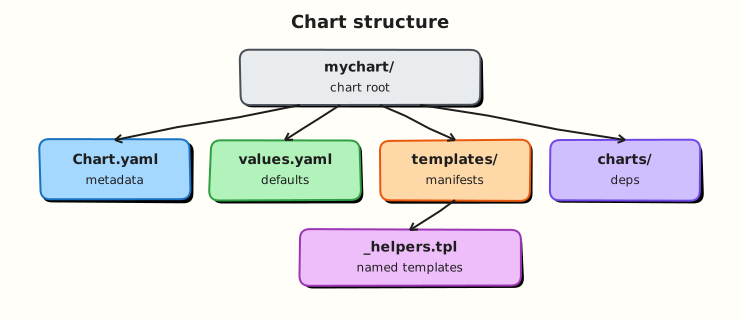
This topic’s control points and relationships are shown below.
Theory
What it is
A Helm chart is a directory (or packaged .tgz) with a conventional layout. At minimum you care about Chart.yaml (metadata), values.yaml (defaults), and templates/ (Kubernetes manifests written as Go templates). Optional pieces include charts/ for vendored subcharts, templates/_helpers.tpl for shared named templates, NOTES.txt for post-install messages, and .helmignore to exclude files from the package.
| Path | Purpose |
|---|---|
Chart.yaml | name, version, appVersion, dependencies |
values.yaml | Default configuration consumers override |
templates/ | Templated Kubernetes manifests |
templates/_helpers.tpl | Named templates / labels helpers |
charts/ | Packaged subcharts after helm dependency update |
.helmignore | Files excluded from helm package |
Why it matters
Charts are how teams share a consistent Deployment/Service/Ingress shape. If you cannot read a chart’s layout quickly, you cannot review pull requests, debug a bad release, or decide what belongs in values versus hard-coded template text. Platform engineering lives or dies on clear chart boundaries: application charts for workloads, library charts for shared snippets, and disciplined SemVer for the package itself.
How it works
helm create mychart scaffolds the layout. Authors edit templates and defaults; consumers override values at install time. helm lint checks structure and common mistakes. helm package builds a versioned archive using Chart.yaml’s version field. When dependencies are declared, helm dependency update downloads them into charts/ and records pins in Chart.lock.
Distinguish two version fields:
version— SemVer of the chart package (what you bump when templates/values change).appVersion— informational version of the application the chart deploys (not used by Helm’s dependency resolver as a SemVer constraint the same way).
Key concepts and comparisons
Think of a chart like a software package: metadata (Chart.yaml), configuration knobs (values.yaml), and build inputs (templates/). The rendered output is ordinary Kubernetes YAML — charts do not invent a new runtime. Files under templates/ whose names start with _ are partials (helpers), not standalone manifests.
Common pitfalls
- Treating
appVersionas the image tag — image tags usually live undervalues.yaml(image.tag) and may differ fromappVersion. - Putting environment-specific hosts and secrets into the chart defaults and committing them.
- Editing files inside
charts/by hand instead of declaring dependencies and runninghelm dependency update. - Shipping huge non-template assets because
.helmignorewas never configured.
Hands-on Lab
Objective
Build a complete application chart layout — Chart.yaml, values.yaml, _helpers.tpl, Deployment, Service, and NOTES.txt — then lint, template, and inventory rendered Kubernetes kinds.
Prerequisites
- Helm 3.x (
helm version) - kubectl optional until optional install
- Writable workspace at
~/rebash-helm/module-03
Lab environment
Workspace: ~/rebash-helm/module-03 on your workstation.
Real-world scenario
Your platform team publishes a standard web chart for product squads. Reviewers expect the full directory layout — metadata, helpers, workload templates, and post-install notes — before the chart enters an internal registry.
Step-by-step tasks
Task 1 – Chart metadata and defaults
Create rebash-platform/Chart.yaml:
apiVersion: v2
name: rebash-platform
description: REBASH platform web chart with full layout
type: application
version: 0.2.0
appVersion: "1.27"
maintainers:
  - name: platform-team
    email: platform@example.com
Create rebash-platform/values.yaml:
replicaCount: 1
nameOverride: ""
fullnameOverride: ""
image:
  repository: nginxinc/nginx-unprivileged
  tag: "1.27-alpine"
  pullPolicy: IfNotPresent
service:
  type: ClusterIP
  port: 8080
resources: {}
Create .helmignore:
Task 2 – Helpers and workload templates
Create rebash-platform/templates/_helpers.tpl:
{{- define "rebash-platform.name" -}}
{{- default .Chart.Name .Values.nameOverride | trunc 63 | trimSuffix "-" }}
{{- end }}

{{- define "rebash-platform.fullname" -}}
{{- if .Values.fullnameOverride }}
{{- .Values.fullnameOverride | trunc 63 | trimSuffix "-" }}
{{- else }}
{{- printf "%s-%s" .Release.Name .Chart.Name | trunc 63 | trimSuffix "-" }}
{{- end }}
{{- end }}

{{- define "rebash-platform.labels" -}}
app.kubernetes.io/name: {{ include "rebash-platform.name" . }}
app.kubernetes.io/instance: {{ .Release.Name }}
app.kubernetes.io/version: {{ .Chart.AppVersion | quote }}
helm.sh/chart: {{ printf "%s-%s" .Chart.Name .Chart.Version | replace "+" "_" }}
{{- end }}
Create rebash-platform/templates/deployment.yaml:
apiVersion: apps/v1
kind: Deployment
metadata:
  name: {{ include "rebash-platform.fullname" . }}
  labels:
    {{- include "rebash-platform.labels" . | nindent 4 }}
spec:
  replicas: {{ .Values.replicaCount }}
  selector:
    matchLabels:
      app.kubernetes.io/name: {{ include "rebash-platform.name" . }}
      app.kubernetes.io/instance: {{ .Release.Name }}
  template:
    metadata:
      labels:
        {{- include "rebash-platform.labels" . | nindent 8 }}
    spec:
      containers:
        - name: web
          image: "{{ .Values.image.repository }}:{{ .Values.image.tag }}"
          imagePullPolicy: {{ .Values.image.pullPolicy }}
          ports:
            - containerPort: {{ .Values.service.port }}
          resources:
            {{- toYaml .Values.resources | nindent 12 }}
Create rebash-platform/templates/service.yaml:
apiVersion: v1
kind: Service
metadata:
  name: {{ include "rebash-platform.fullname" . }}
  labels:
    {{- include "rebash-platform.labels" . | nindent 4 }}
spec:
  type: {{ .Values.service.type }}
  ports:
    - port: {{ .Values.service.port }}
      targetPort: {{ .Values.service.port }}
      protocol: TCP
      name: http
  selector:
    app.kubernetes.io/name: {{ include "rebash-platform.name" . }}
    app.kubernetes.io/instance: {{ .Release.Name }}
Create rebash-platform/templates/NOTES.txt:
REBASH platform chart installed.

Release: {{ .Release.Name }}
Namespace: {{ .Release.Namespace }}
Service: {{ include "rebash-platform.fullname" . }}:{{ .Values.service.port }}

Check pods:
  kubectl get pods -n {{ .Release.Namespace }} -l app.kubernetes.io/instance={{ .Release.Name }}
Task 3 – Lint, template, and kind inventory
cd ~/rebash-helm/module-03
helm lint rebash-platform | tee lint-m03.txt
helm template platform-demo rebash-platform --namespace rebash-helm-m03 | tee render-m03.yaml
grep -E '^kind:' render-m03.yaml | sort | uniq -c | tee kinds-m03.txt
grep -q 'kind: Deployment' render-m03.yaml
grep -q 'kind: Service' render-m03.yaml
helm show chart rebash-platform | tee show-chart-m03.txt
helm show values rebash-platform | tee show-values-m03.txt
Expected output
lint-m03.txt reports 0 failures; kinds-m03.txt shows exactly one Deployment and one Service.
Task 4 – Optional install and NOTES proof
Create namespace.yaml:
cd ~/rebash-helm/module-03
if command -v helm >/dev/null && kubectl cluster-info >/dev/null 2>&1; then
  kubectl apply -f namespace.yaml
  helm upgrade --install platform-demo rebash-platform -n rebash-helm-m03 --wait --timeout 120s | tee install-m03.txt
  helm get notes platform-demo -n rebash-helm-m03 | tee notes-m03.txt
  grep -q 'platform-demo' notes-m03.txt
else
  echo "Skipping install — cluster unavailable" | tee install-m03.txt
fi
Expected output
notes-m03.txt contains release name and kubectl hint from NOTES.txt.
Validation steps
- Chart includes
Chart.yaml,values.yaml,_helpers.tpl, Deployment, Service, andNOTES.txt -
helm lintpasses - Kind inventory lists Deployment and Service only
-
helm show chartandhelm show valuescaptured for review - Optional install runs in
rebash-helm-m03
Common errors and fixes
| Error | Cause | Fix |
|---|---|---|
| Lint warns on icon | Missing icon field | Safe to ignore for lab; add icon URL for production charts |
| Duplicate kind counts | Extra templates added | Keep lab scope to Deployment + Service |
| NOTES not shown | Install skipped | Run Task 4 or use helm template --notes locally |
| Invalid YAML after render | Bad nindent in helpers | Diff render-m03.yaml around labels block |
Challenge exercise
Add a templates/configmap.yaml driven by values.yaml key configMessage, re-run lint and kind inventory, and assert a ConfigMap kind appears exactly once.
Learning outcomes
- Assembled the conventional Helm chart directory layout by hand
- Centralised labels and names in
_helpers.tpl - Inventoried rendered kinds before any cluster apply
- Used
NOTES.txtfor operator-facing post-install guidance
Cleanup
helm uninstall platform-demo -n rebash-helm-m03 2>/dev/null || true
kubectl delete namespace rebash-helm-m03 --ignore-not-found
Validation
- Lab commands run under
~/rebash-helm/module-03/ - You can explain each Theory section in your own words
- You used modern tooling where it applies to this topic
- You can describe one production failure mode for this topic
Code Walkthrough
Production practice for Working with Helm Charts always combines:
- Inspect before you change (status, plan, logs, dry-run)
- Prefer reversible, documented changes (Git, IaC, drop-ins, version pins)
- Capture evidence (command output, pipeline logs) for handovers
- Prefer current tools and APIs over legacy shortcuts
- Least privilege — escalate credentials only when required
Keep runbooks short enough to follow under pressure. Automate checks; keep humans for judgement.
Security Considerations
- Treat credentials and tokens for helm as privileged — never commit them
- Prefer short-lived auth (OIDC, roles, SSO) over long-lived keys
- Validate blast radius before apply/deploy/delete operations
- Restrict who can approve production changes
- Collect audit logs; limit who can read sensitive traces
Common Mistakes
Treating appVersion as the image tag — image tags usually live under values.yaml (`ima
Validate assumptions against the Theory section and official docs before changing production.
Putting environment-specific hosts and secrets into the chart defaults and committing them
Lab shortcuts (open security groups, admin roles, skip approvals) must not ship unchanged.
Changing production without a rollback path
Always know how to revert (previous artefact, prior release, state rollback, DNS failback).
Best Practices
- Encode Working with Helm Charts changes as code and review them in pull requests
- Pin versions (images, modules, actions, provider plugins)
- Separate environments with clear promotion gates
- Alert on symptoms with runbooks attached
- Destroy lab resources; tag everything with owner and expiry where possible
Troubleshooting
| Symptom | Likely cause | Fix |
|---|---|---|
| Auth / permission denied | Wrong identity, policy, or scope | Check caller identity, roles, and least-privilege policies |
| Timeout / no route | Network, DNS, security group, or endpoint | Trace path, DNS, and allow-lists before retrying |
| Drift / unexpected plan | Manual change or wrong state/workspace | Reconcile desired vs actual; avoid click-ops on managed resources |
| Pipeline/job red | Flaky step, cache, or missing secret | Read failing step logs; bisect recent workflow/config changes |
| Cost spike | Idle load balancer, NAT, oversized compute | Inventory billable resources; stop/delete labs promptly |
Summary
Working with Helm Charts is essential for Cloud and DevOps engineers working with helm. Practise the lab until the inspection and change path is muscle memory, then continue the track.
Interview Questions
- What does
helm packageproduce? - How do you inspect default values before installing?
- What is the purpose of Chart.yaml versus values.yaml?
- Why lint charts before sharing them with other teams?
- How do semantic versions on charts help consumers?
Sample answer — question 2
helm show values or reading values.yaml reveals defaults. Always review before production installs so replica counts, images, and service types are intentional.
Sample answer — question 4
Lint catches template and metadata mistakes early. Sharing broken charts wastes cluster time and can leave failed releases that need cleanup.